On This Page

Roles & RACI

Process Architecture Process Architecture Available with a Process Architecture seat or higher. Only seats on this plan or a higher one can use this feature. Compare plans Available with a Process Architecture seat or higher

Clear ownership is essential for a well-governed process landscape. ProcessMind lets you build a central role library, generate roles with AI, and assign RACI responsibilities so every activity has an accountable owner.

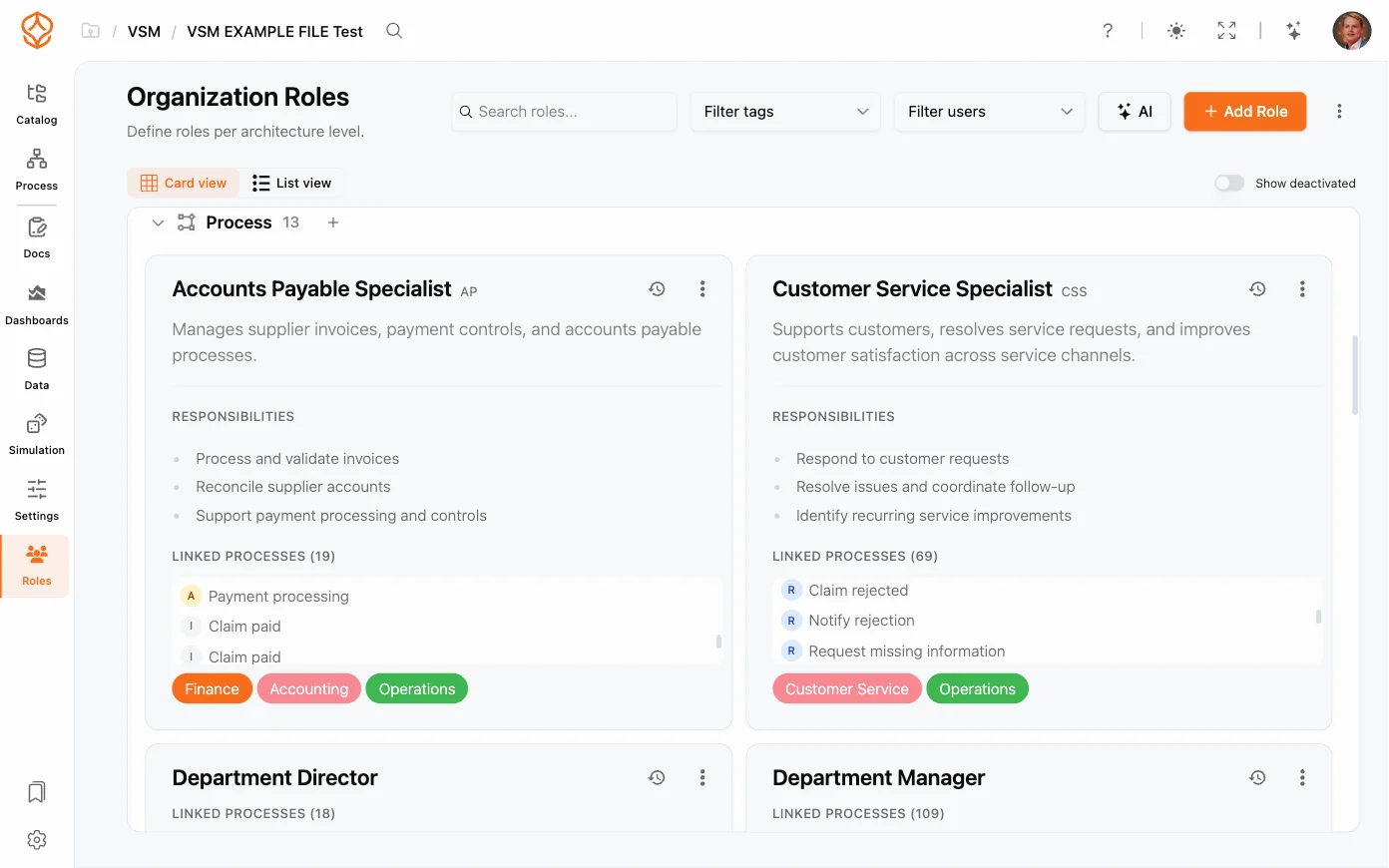
ProcessMind role library in card view

The Role Library

The role library is your single source of truth for roles across the organization:

  • Define roles such as Process Owner, Process Manager, or Quality Lead.
  • Reuse the same role across multiple processes to keep naming consistent.
  • Edit, rename, or retire roles as your organization changes.

Adding and Editing Roles

  1. Open the Roles page from the left rail.
  2. Click Add Role, or open an existing role to edit it.
  3. Fill in the role:
    • Name and Abbr. — for example “Process Owner” and “PO”.
    • Level — the architecture level the role belongs to.
    • Description — what the role does, in one or two sentences.
    • Responsibilities (Markdown) — the longer description of what the role owns.
    • Tags — your own labels; type and press Enter to add one.
    • Assignees — the people who hold the role.
    • Active — switch the role off instead of deleting it.
  4. Click Save.

The role’s menu (⋯) holds Edit, Clone, Delete, and the Activate or Deactivate action. Clone copies a role with “(copy)” appended to the name, which saves time when two teams share most of a definition.

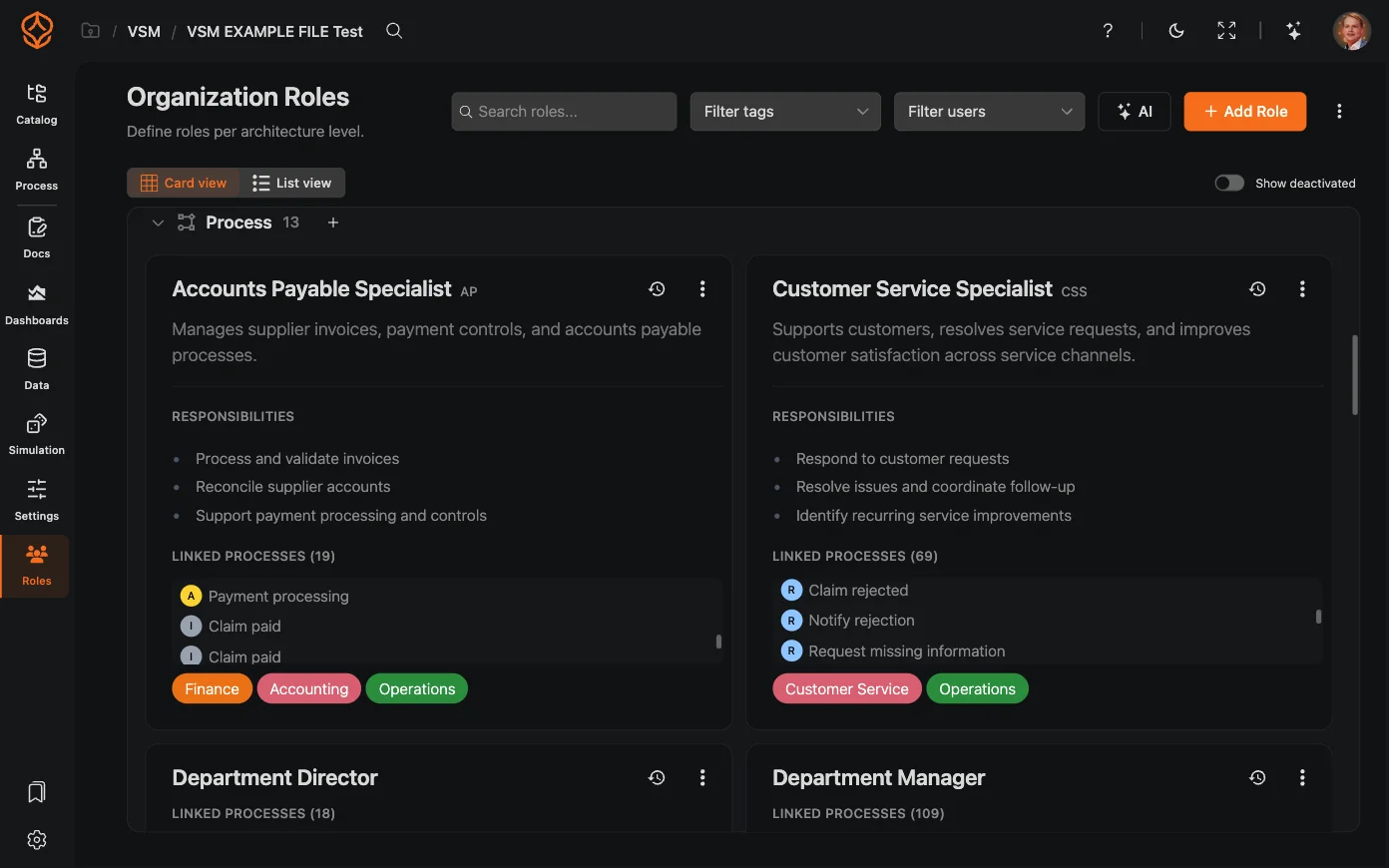
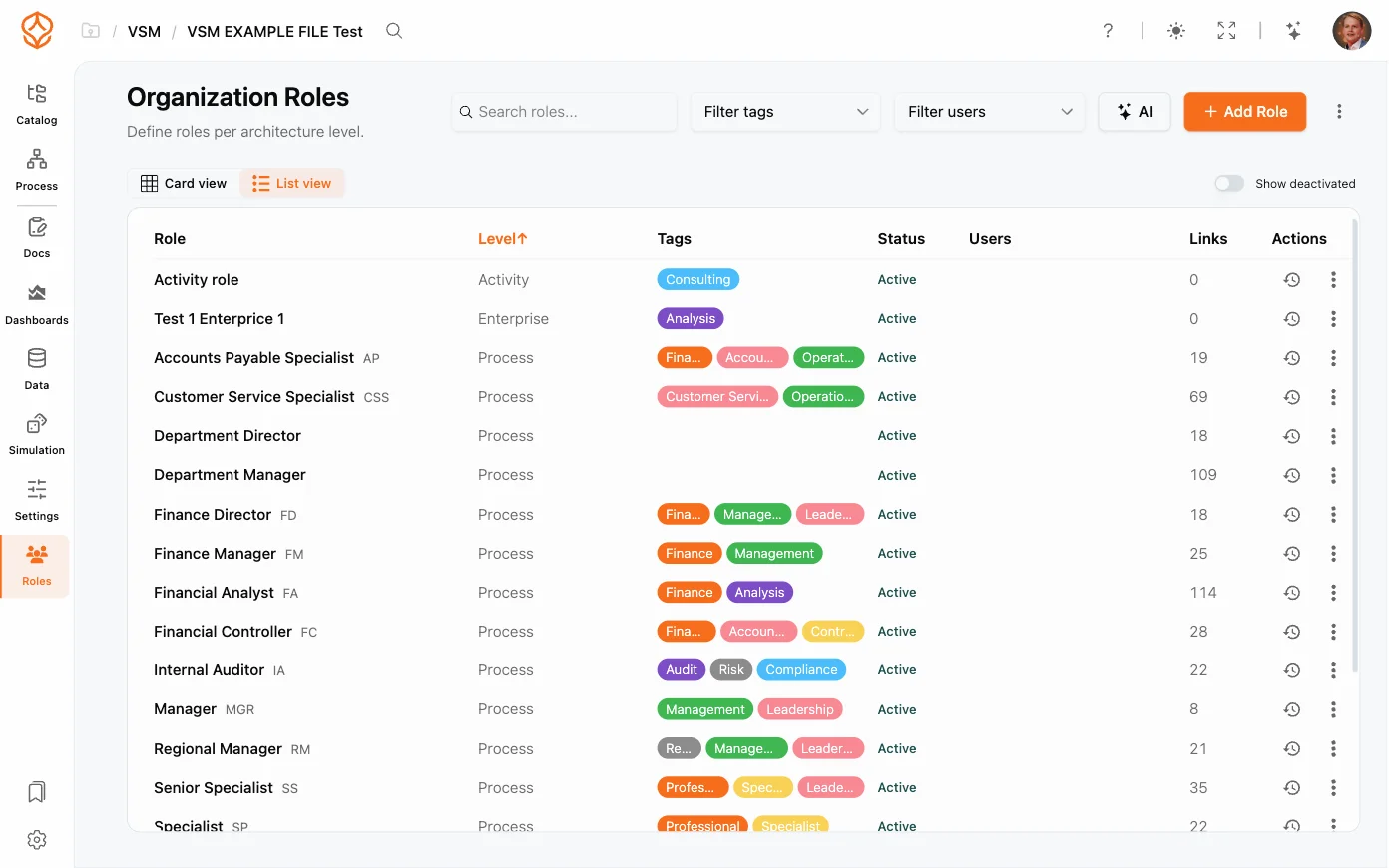
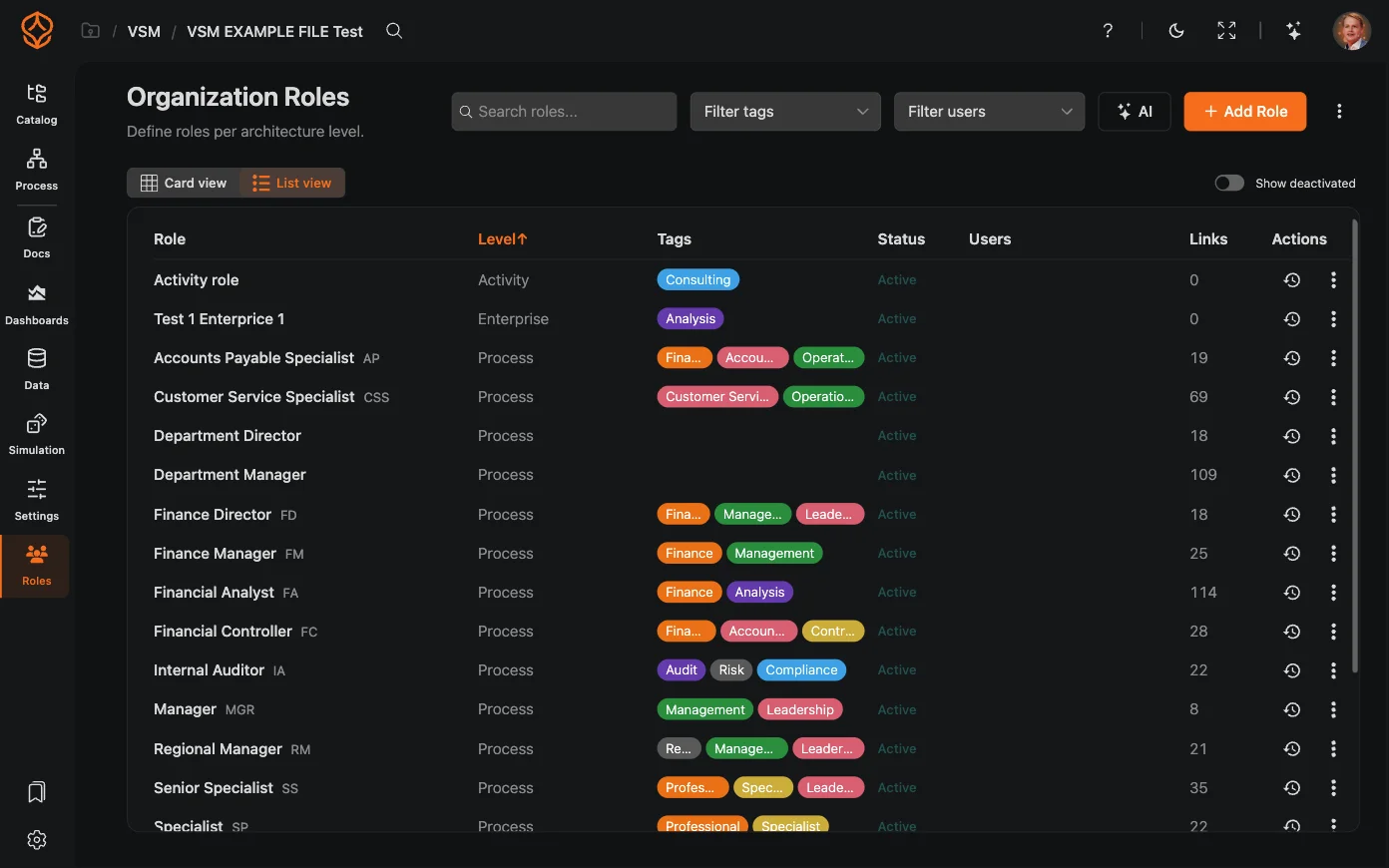
On the Roles page you can switch between Card view and List view. Card view gives each role a quick visual summary, while List view presents the library as a compact table for scanning more roles at once. Click a role’s tag pill to filter the library by that tag, or use Filter tags and Filter users for more focused results. Turn on Show deactivated to include roles you switched off.

ProcessMind role library in list view with tag filters

Generating Roles with AI

  1. On the Roles page, click AI, or open the roles setup wizard (Set up roles in the page menu) and choose Generate roles with AI. The same wizard also offers Add roles manually and Import roles in bulk.
  2. Select the departments the roles should cover, such as Engineering, Finance, or Legal.
  3. Add steering in Additional Information, and use Use files as context to let your own documents guide the result.
  4. Click Generate and review the suggestions.
  5. Click the Import button (it shows how many roles will be added), or Change to adjust the input and generate again.

This is a quick way to get a complete, consistent role list for a new process without typing every entry by hand.

Importing and Exporting Roles

The Roles page menu (⋯) moves your role library in and out of ProcessMind:

  • Import Roles (JSON/CSV) adds roles from a file; you see a preview of what will be created and updated before you confirm.
  • Export Roles (JSON) and Export Roles (CSV) download the whole library for reporting or offline editing.
  • Clear All Roles deletes every role in the organization after a confirmation. Export first if you might want them back.

Assigning RACI Responsibilities

RACI defines four levels of involvement for each activity:

  • Responsible (R): does the work.
  • Accountable (A): owns the outcome and approves.
  • Consulted (C): provides input before the work.
  • Informed (I): is kept up to date on progress.

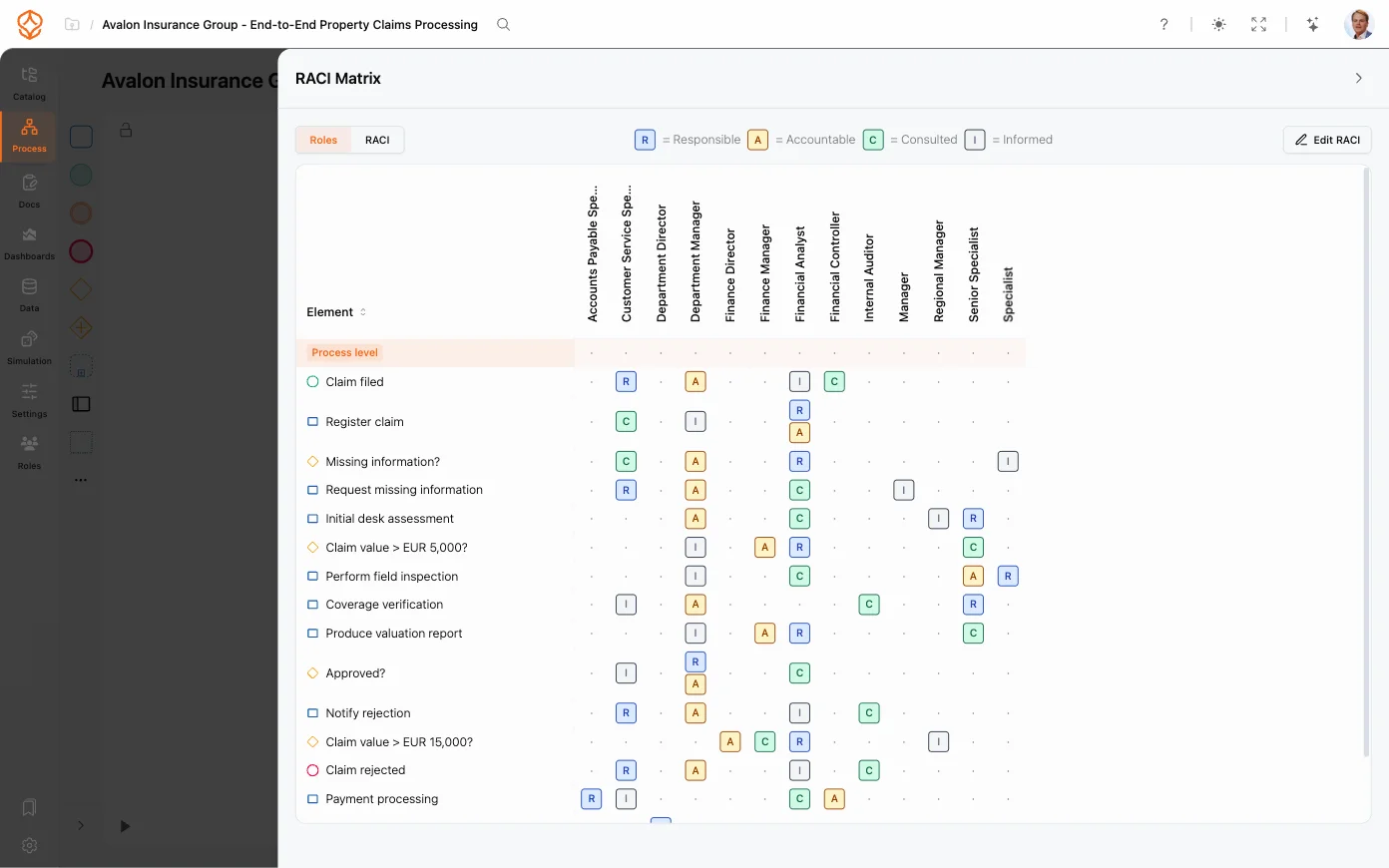
In the model and the documentation editor, assign a role and a RACI level to each activity. The RACI matrix then gives you a complete overview of who is responsible, accountable, consulted, and informed for every activity in the process.

Working with the RACI Matrix

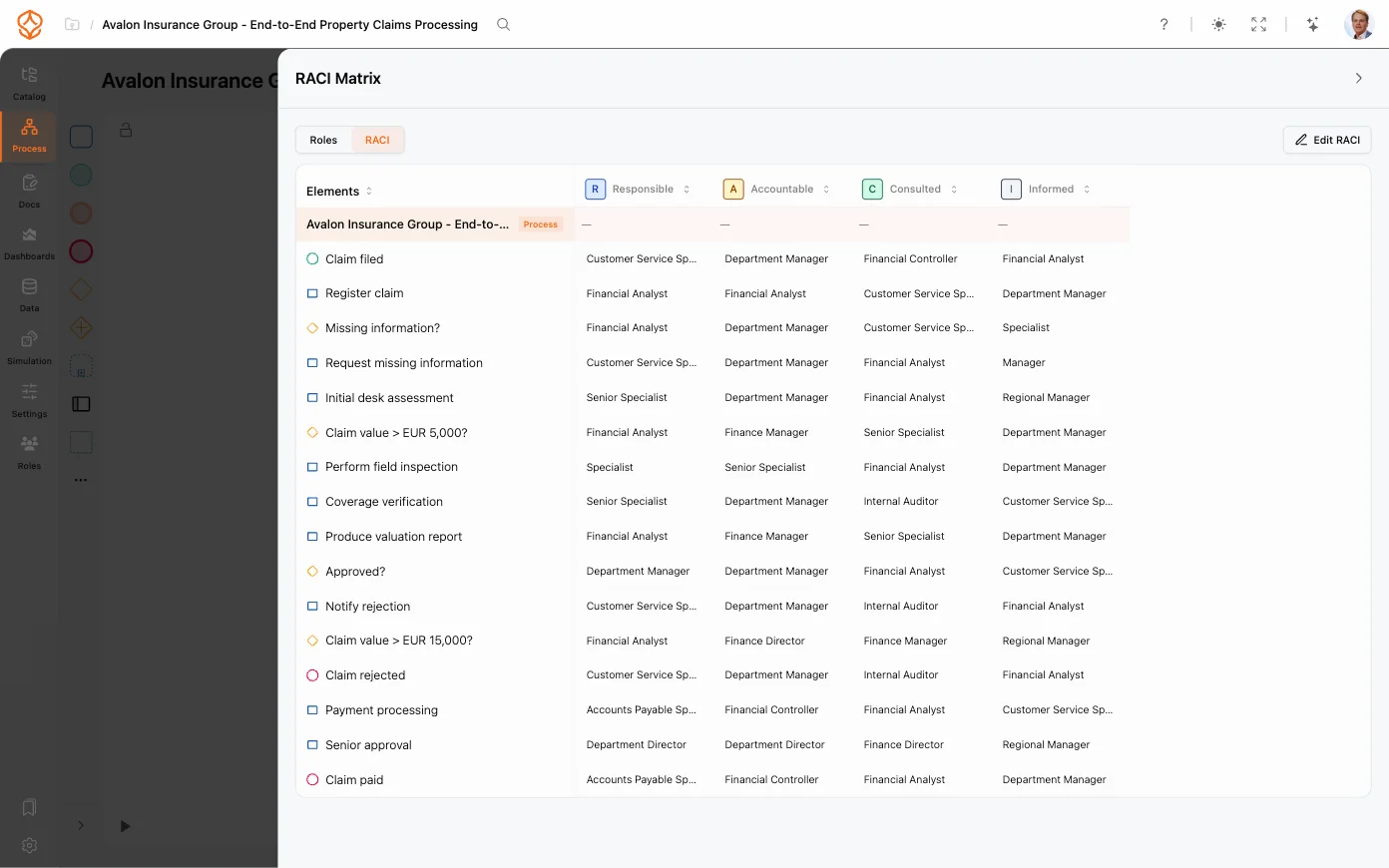
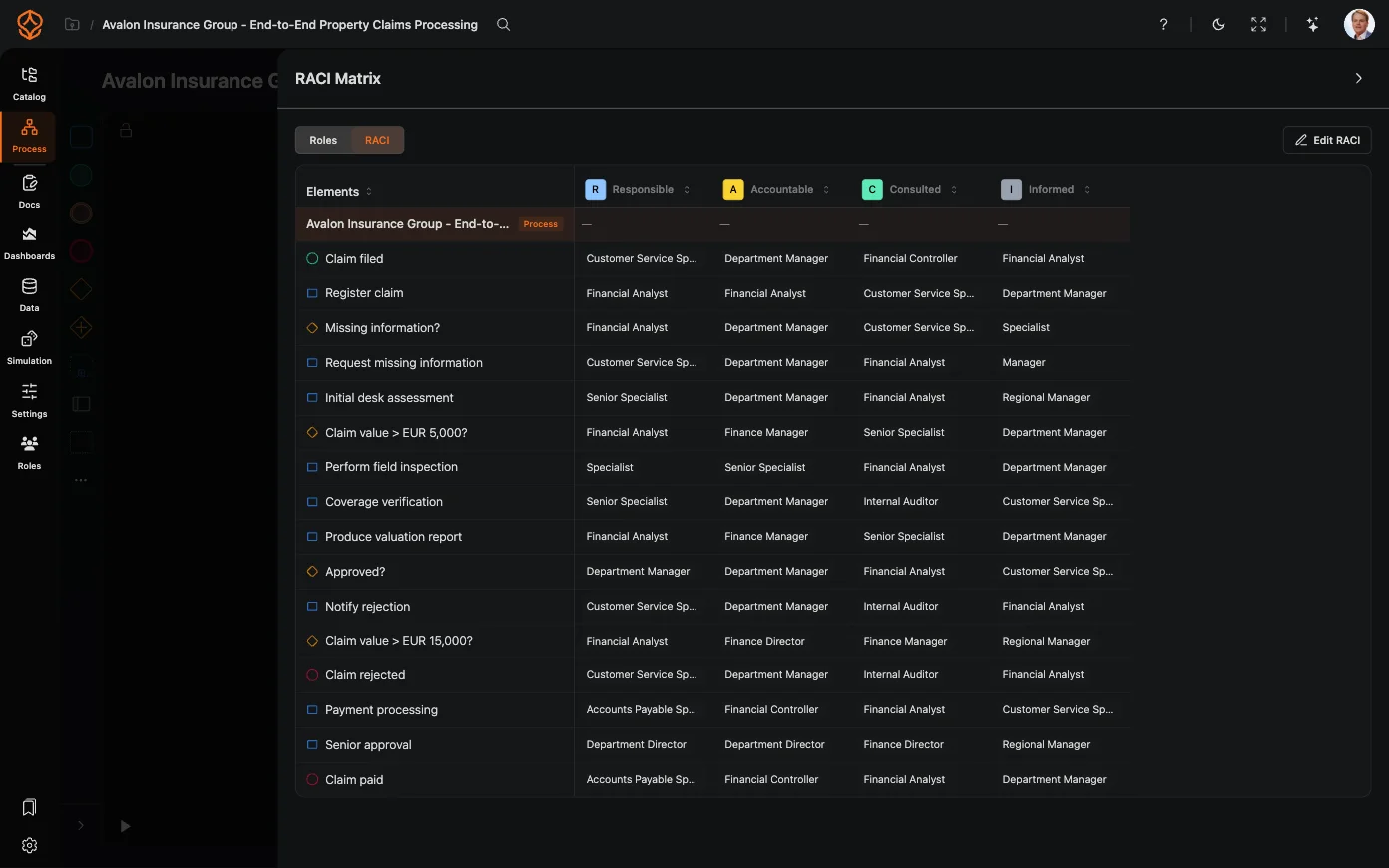
Open a process’s Documentation panel and choose RACI Matrix to open the editor:

ProcessMind RACI matrix layout
  • Assign a cell by clicking it and choosing Responsible, Accountable, Consulted, or Informed; use Clear assignment to remove one.
  • Add a role column from the matrix menu, or use the × on a column header to Remove role from matrix.
  • Reorder roles: choose Rearrange roles from the matrix menu, drag the role columns, then click Done rearranging.
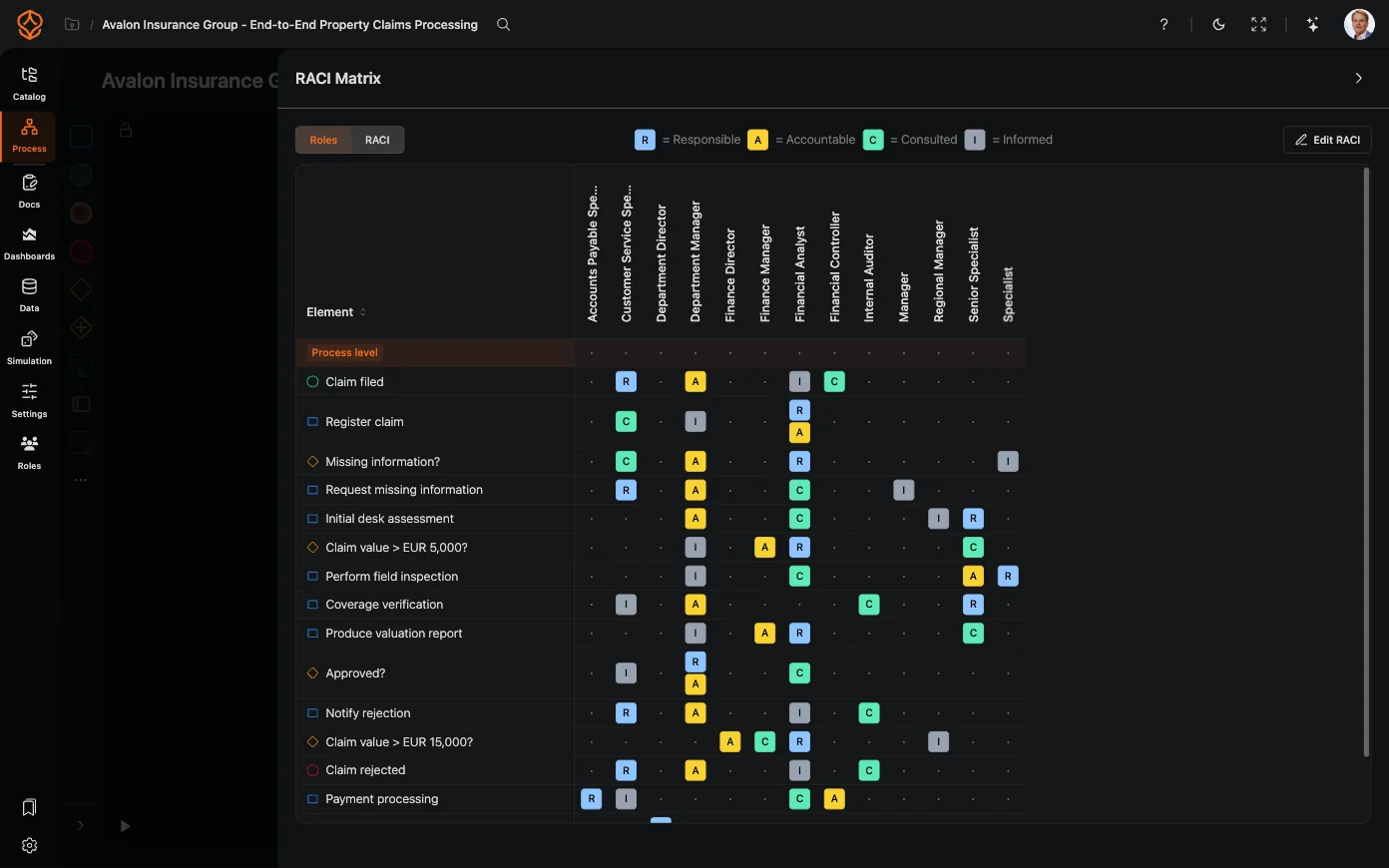
  • Switch the layout between Roles (roles as columns) and RACI (the R/A/C/I letters as columns), and Open enlarged RACI for a full-screen view.
  • Sort the rows by process order or by element name.
  • Apply as lanes: restructure the model so each role becomes a lane, keeping the model and its RACI assignments in sync.
  • Export RACI and Import RACI move the matrix in and out of ProcessMind, and Remove unused roles cleans up roles that no longer appear in the matrix.

The matrix can be viewed with roles as columns or with RACI levels as columns:

ProcessMind roles matrix layout

Reviewing Role History

Every change to the role library is recorded:

  • Use Restore to here on a history entry to roll the role library back to that point; confirm with Restore. Restoring affects all roles, not just the one you opened, so check the list before you restore.

Roles and RACI fit naturally into your process architecture: make sure every level has a clear owner. They also flow directly into process documentation, where the RACI matrix is rendered as part of each process document.