Configuring Your Dataset
Step-by-step guide to uploading, mapping, and setting up your dataset for accurate process mining analysis in ProcessMind.
Incremental data loading (also called delta loading) allows you to append new rows to an existing datatable without replacing the original data. This is useful when your event log data grows over time and you want to keep your process mining analysis up to date without re-uploading the entire dataset.
Common scenarios include:
info
Delta files must have the same column structure (column names and order) as the original upload. Extra columns in the delta file are ignored. Missing columns will result in null values.
.gz), as long as the inner format matches the original upload format.info
For information on all supported file formats, see the Supported Data Formats page.
Use the ProcessMind API to upload delta files programmatically. See the API Reference: Data page for full endpoint details.
The workflow is:
Get a delta presigned upload URL:
GET /v1/tenant/{tenantId}/datatables/{dataTableId}/uploads/presigned-url
    ?delta=true&filename=delta.csv&filesize=1024&filelastmodified=1704067200000
Upload the delta file using the presigned URL:
curl -X PUT --upload-file "delta.csv" \
    -H "Content-Type: text/csv" \
    "{PreSignedUploadUrl}"
After the upload completes, ProcessMind automatically processes the delta and combines it with the original data. You can poll GET /datatables/{dataTableId} until hasDataLoaded is true to know when processing is done.
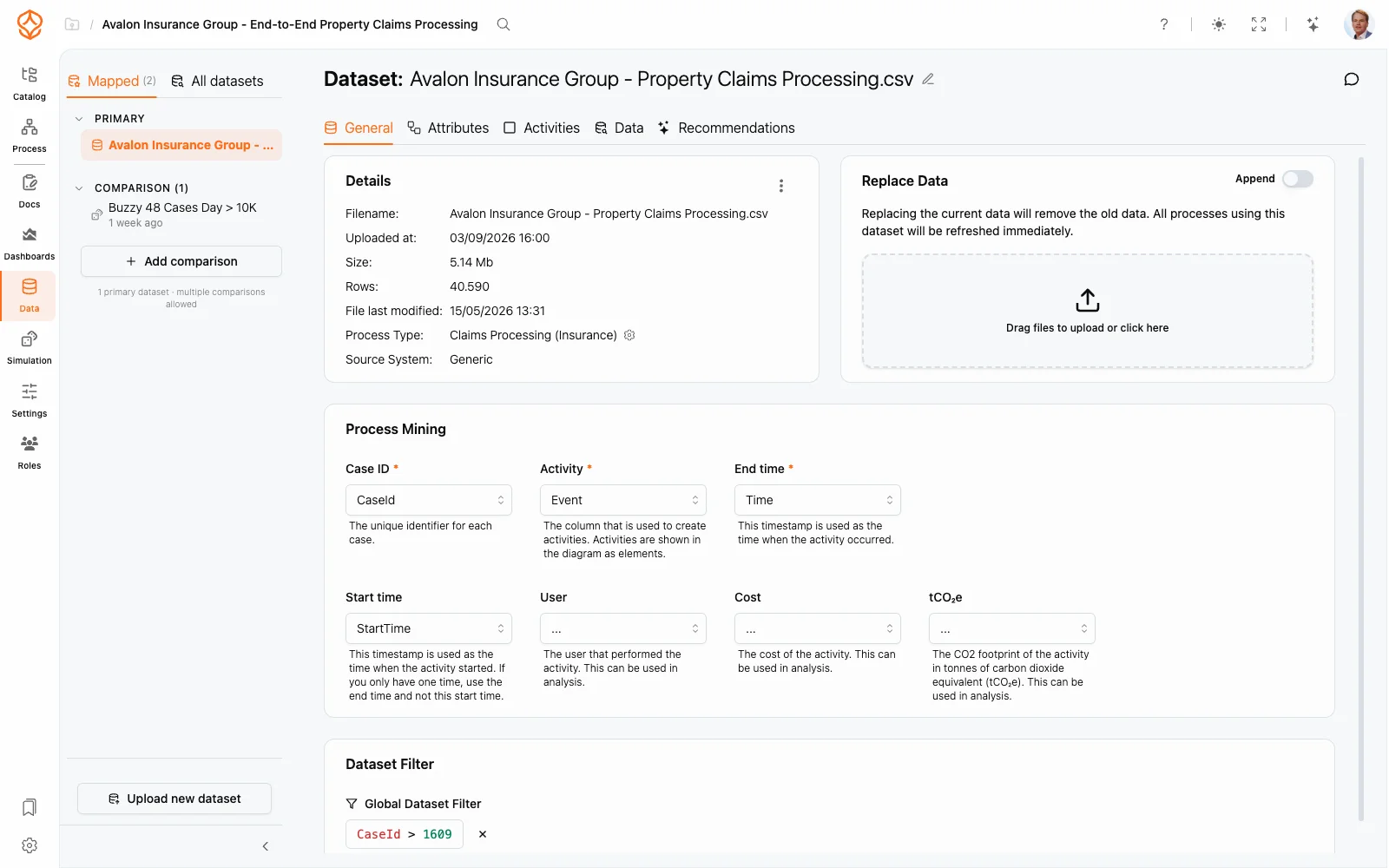
Incremental data loading can also be triggered from the dataset’s General tab in the ProcessMind application:
ProcessMind uploads the file as a delta and processes it together with the existing data. Delta uploads are explicit: they are never detected automatically from a normal (replace) upload.
After one or more incremental uploads, the datatable’s upload history includes an uploadParts array that tracks each file:
{
	"uploadHistory": {
		"uploadParts": [
			{
				"key": "datatable/123/2.csv",
				"fileName": "orders-january.csv",
				"fileSize": 524288,
				"uploadedAt": "2024-01-15T10:00:00Z"
			},
			{
				"key": "datatable/123/3.csv",
				"fileName": "orders-february.csv",
				"fileSize": 419430,
				"uploadedAt": "2024-02-15T10:00:00Z"
			}
		]
	}
}warning
Incremental uploads append data: they do not update or replace existing rows. If you need to correct data in a previous upload, re-upload the entire dataset.
ProcessMind does not enforce a strict schema between upload parts. This means:
For best results, ensure all delta files have the same column structure as the original upload.
info
For CSV and JSONL formats, all values are read as strings internally, so there is no type mismatch error. For Parquet and ORC formats, column data types are preserved from the file schema. In all cases, if a column expects numeric data and you upload incompatible values, downstream analysis or simulations may produce unexpected results.
Get instant access with no credit card and no waiting. Turn the way your organization works into clear, connected process designs.
Build your process architecture, define ownership and controls, and align roles and responsibilities across every level.
Start your free trial and create one reliable foundation for governing, managing, and continuously improving your processes.
We use cookies to improve your experience, personalize content, and analyze traffic. Anonymous page measurement happens without them; analytics consent adds an identifier that links your visits. By clicking "Accept All," you consent to our use of cookies.