Process Architecture
Structure, document, and govern your entire process landscape, from hierarchy levels and value streams to roles, RACI, documentation, governance, and the Proces
Governance is about making sure your processes are accurate, approved, and accessible to the right people. ProcessMind gives you publishing workflows, review and approval steps, and clear status tracking so your process landscape stays under control.
Every process has a status that reflects where it is in its lifecycle:
The catalog shows the status of every process, so you can see at a glance what is current, what is being reviewed, and what is outdated.
Review and approval keep control of what reaches viewer users:
Reviewers find their work through the Needs my review filter in the catalog, which lists the processes waiting on them. Reviewers should check the model, the documentation, and the RACI matrix before approving.
Publishing decides what viewer users see in the Process Portal:
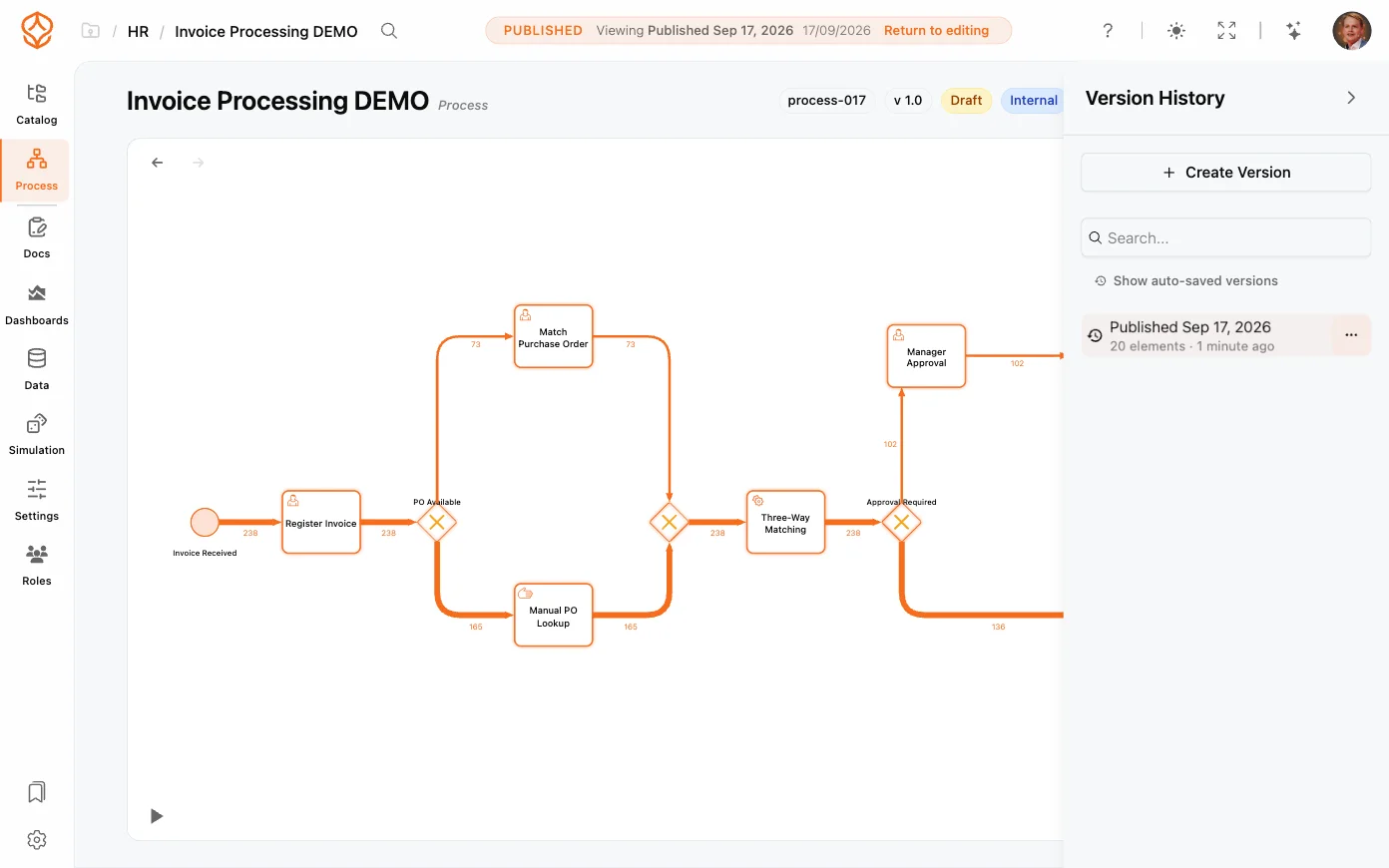
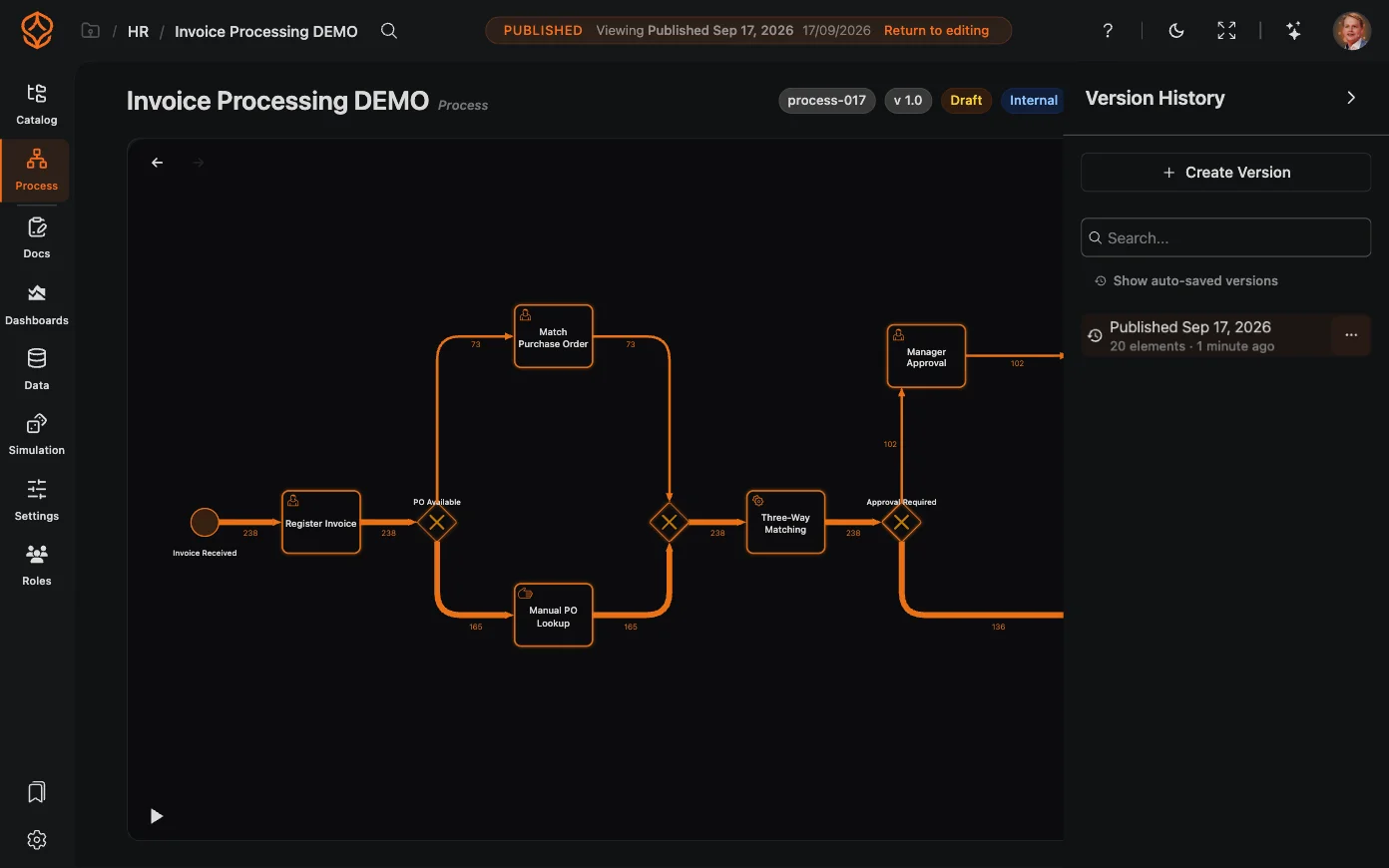
When a published version exists, the version bar on the model page offers View published version to inspect exactly what viewers see, and Return to editing to go back to the working model.
Get instant access with no credit card and no waiting. Turn the way your organization works into clear, connected process designs.
Build your process architecture, define ownership and controls, and align roles and responsibilities across every level.
Start your free trial and create one reliable foundation for governing, managing, and continuously improving your processes.
We use cookies to improve your experience, personalize content, and analyze traffic. Anonymous page measurement happens without them; analytics consent adds an identifier that links your visits. By clicking "Accept All," you consent to our use of cookies.