Modeling
Editor features for building BPMN models in ProcessMind: the modeling canvas, element settings, AI generation, import and export, versioning, and auto layout.
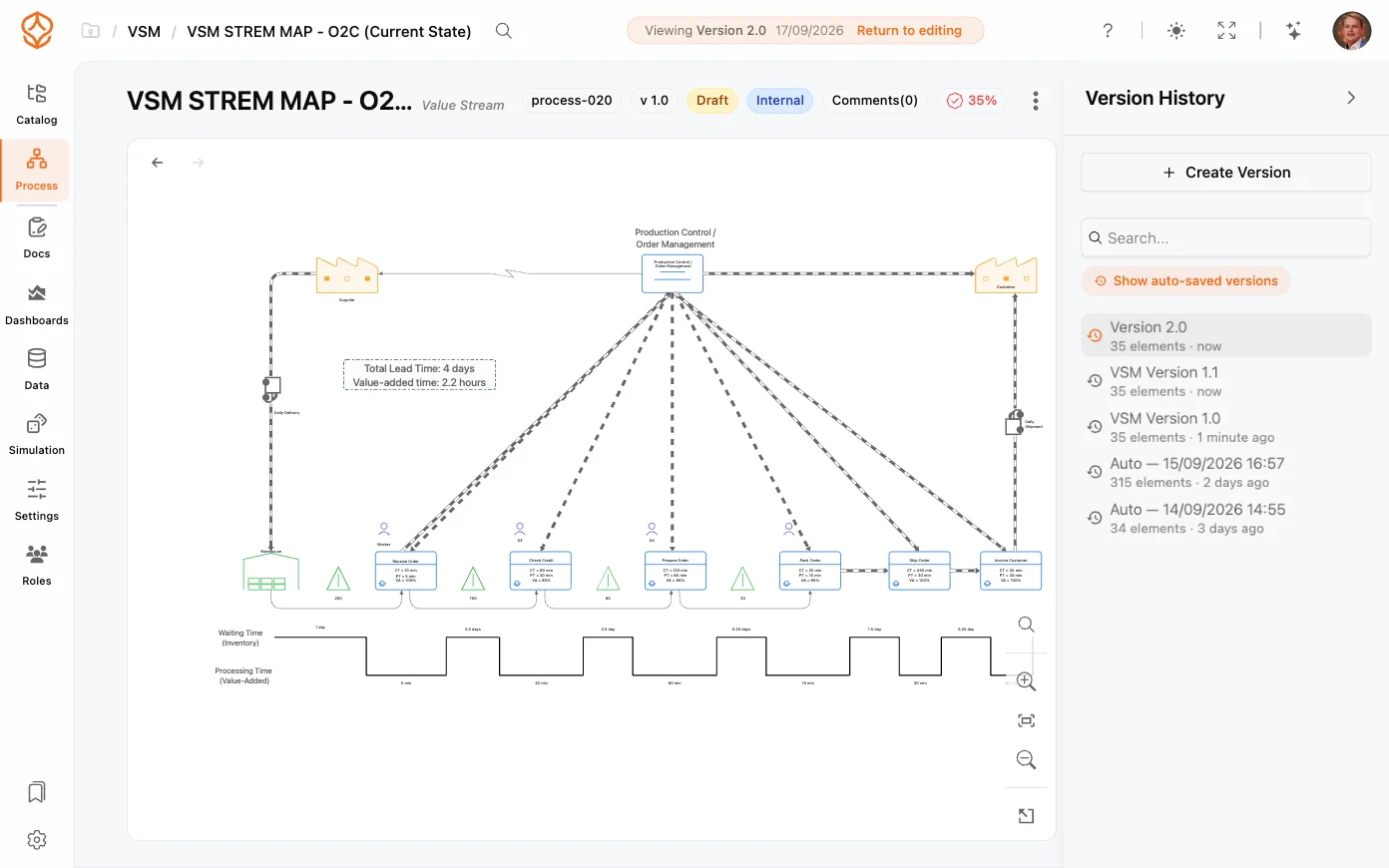
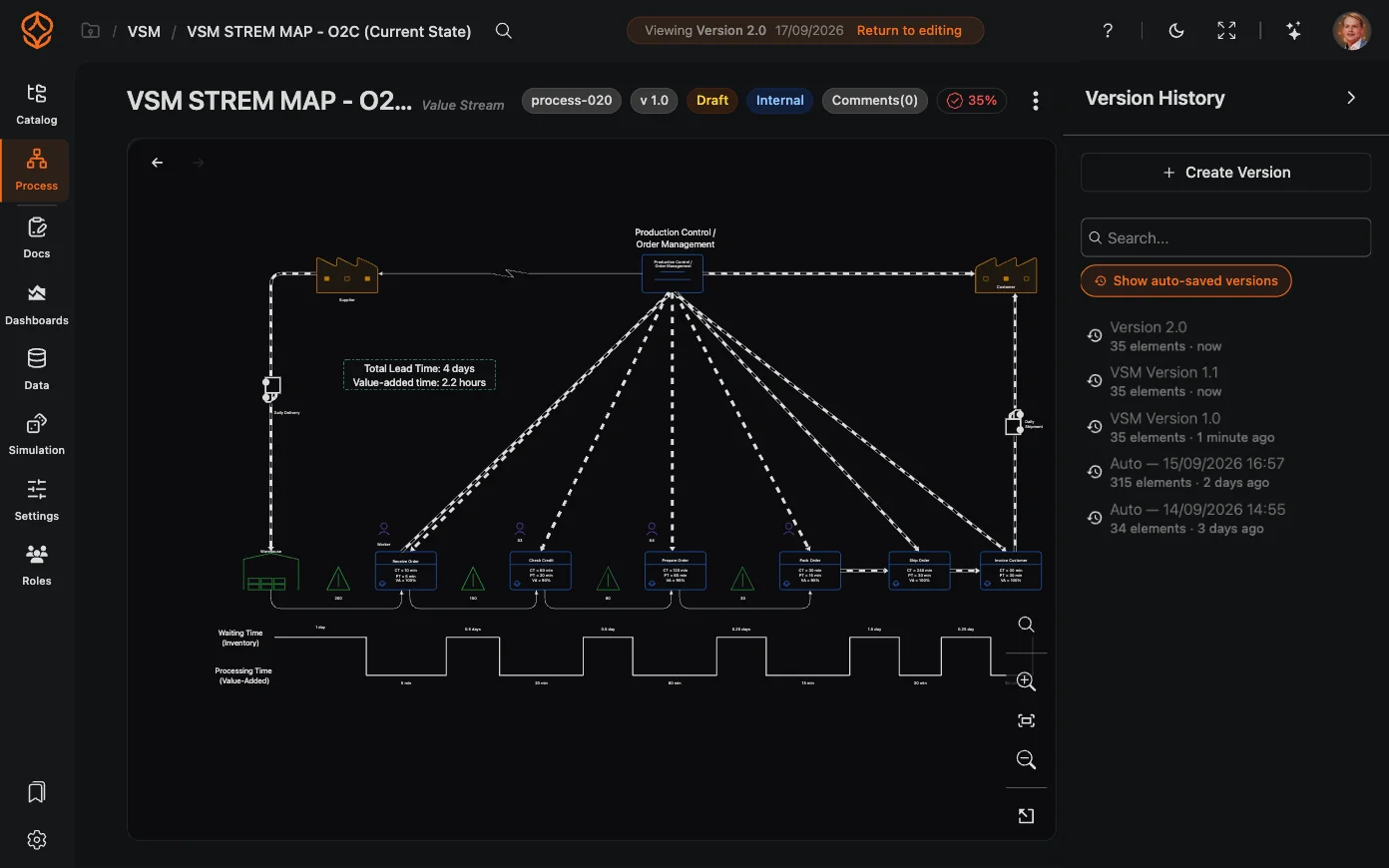
Versioning lets you take snapshots of your process model at important moments, so you can always return to a known-good state. Every version is stored with a display name and description, and you can view or restore any of them from Version History, which you open from the Open Menu in the top-right corner of the model page.
Create a version whenever you reach a milestone, before a big redesign, after a review, or when a model is ready to publish:
ProcessMind stores the full model state, so a version always restores exactly what you had.
Open Version History to see the full history of a model, with each version’s name, description, number, and creation date. When you select a version, ProcessMind switches the canvas to that snapshot so you can inspect it before deciding what to do.
If you need to undo a set of changes:
Restoring replaces the current state of the model with the chosen snapshot, so it’s a good idea to create a version of the current state first if you might want it back.
Open a version’s row menu (⋯) to:
When a published version exists, the version bar offers View published version to inspect what viewers see and Return to editing to go back to the working model.
As you work, ProcessMind can automatically capture auto-saved versions of your model at key moments, for example when you create or restore a version. They appear in Version History under the Show auto-saved versions toggle, labeled with the date they were captured. This way you can always fall back to a recent snapshot, even if you did not create a named version yourself.
Get instant access with no credit card and no waiting. Turn the way your organization works into clear, connected process designs.
Build your process architecture, define ownership and controls, and align roles and responsibilities across every level.
Start your free trial and create one reliable foundation for governing, managing, and continuously improving your processes.
We use cookies to improve your experience, personalize content, and analyze traffic. Anonymous page measurement happens without them; analytics consent adds an identifier that links your visits. By clicking "Accept All," you consent to our use of cookies.