Process Catalog
Organize, find, and share your processes with the Process Catalog: tree, cards, and list views, folders, search, filters, and export options.
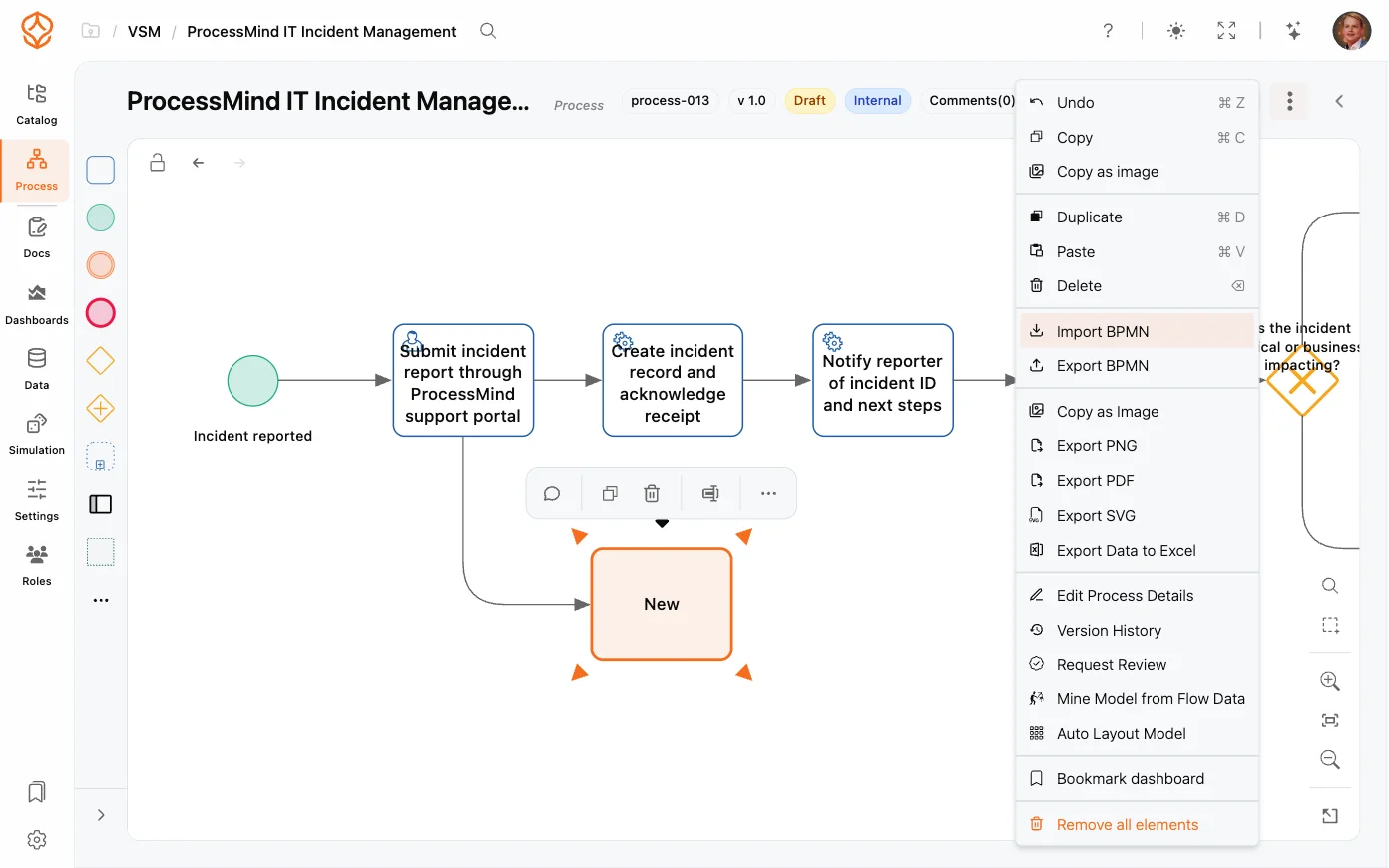
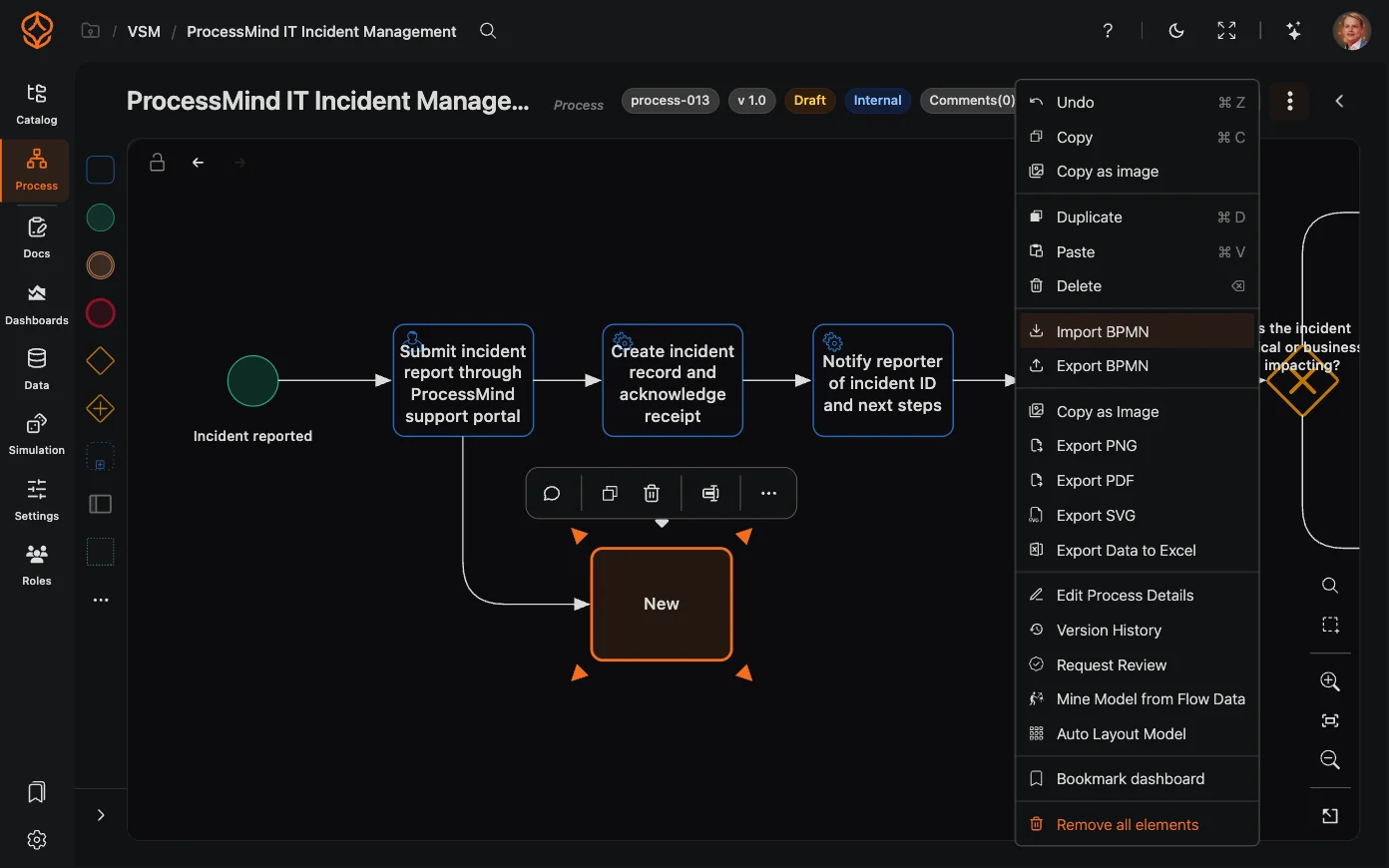
Once your model looks the way you want, you can export it in several formats for presentations, documentation, or use in other BPMN-compliant tools. You can also share a process with colleagues and viewers directly from ProcessMind. Model and documentation exports are included on every editor seat, and the Process Individual plan is capped at 5 exports per month; analysis and data exports are part of Process Intelligence.
Open the process menu (the hamburger menu) on the design canvas to see the export options. The format you choose depends on what you need the file for:
| Format | Best for | Notes |
|---|---|---|
| BPMN | Interchange with other BPMN 2.0 tools | Writes the model — flow and artifacts, layout, label positions and element documentation — and pairs with importing BPMN for a round trip. What is not reproduced one-to-one is listed under Supported BPMN Elements |
| Print-quality documents and distribution | Server-rendered export of the model page | |
| PNG | Screenshots, docs, quick sharing | High-quality raster image of the diagram |
| Copy as image | Pasting into chat, email, or docs | Copies the diagram to your clipboard |
To export, open the process menu on the canvas and choose a format; the download starts immediately. For Copy as image, select the option and paste directly into the destination app with Ctrl+V (Cmd+V on Mac).
Use PNG or Copy as image when you need a quick, self-contained picture to drop into docs, chat, or presentations.
Sharing in ProcessMind is tied to the process publish state and your viewer settings:
For details on managing who can see and edit processes, see the Process Catalog.
Beyond a single model, you can move entire parts of your process library in one go. Open the More actions menu (⋯) at the top of the Process Catalog to import or export at catalog level:
| Action | What it does |
|---|---|
| Export Catalog (CSV) | Downloads a CSV of process metadata: name, type (process or folder), parent, level, process code, classification, and short description. |
| Import Catalog (CSV) | Creates processes and folders from a CSV in the same format. Processes without a known level are placed at the default level, and duplicates are skipped. |
| Export BPMN files | Downloads the processes in your catalog as BPMN 2.0 files in a single .zip. |
| Import BPMN files | Select multiple .bpmn files or a .zip archive; each file becomes a new process (the process name is read from the file). |
The catalog BPMN export writes the same model content as the single-model Export BPMN: flow elements, artifacts, layout, label positions and element documentation. Simulation settings are the exception — the in-app export writes them, the catalog export and the API download do not, so use the in-app Export BPMN when a simulation has to travel with the file. Apart from that, choose the round trip by what you need to move: the CSV round-trip for process metadata, the BPMN round-trip for the model itself.
Get instant access with no credit card and no waiting. Turn the way your organization works into clear, connected process designs.
Build your process architecture, define ownership and controls, and align roles and responsibilities across every level.
Start your free trial and create one reliable foundation for governing, managing, and continuously improving your processes.
We use cookies to improve your experience, personalize content, and analyze traffic. Anonymous page measurement happens without them; analytics consent adds an identifier that links your visits. By clicking "Accept All," you consent to our use of cookies.