Document List
On This Page

Case Explorer

Case Explorer

The Case Explorer lets you investigate individual cases in your process. While dashboards show aggregates and patterns, the Case Explorer shows you exactly what happened to specific cases: every event, every timestamp, every detail.


Why Use the Case Explorer?

Aggregate metrics tell you “what” is happening on average. The Case Explorer tells you “why” by showing you real examples:

  • Validate patterns - Confirm what you see in charts with actual cases
  • Understand outliers - Investigate cases that took unusual paths or times
  • Root cause analysis - Trace through a problematic case step by step
  • Build intuition - Understand how your process really works

Analysis Best Practice

When dashboards show something unexpected, use the Case Explorer to look at specific examples. Real cases often reveal context that metrics miss.


Opening the Case Explorer

There are several ways to access the Case Explorer:

From the Menu

Click the Case Explorer icon in the left sidebar or access it from the main menu.

From an Element

  1. Right-click on an activity or connection
  2. Select Explore Cases
  3. The Case Explorer opens filtered to cases through that element

From a Chart

  1. Click on a data point or segment in a chart
  2. Select Explore Cases from the options
  3. The Case Explorer opens filtered to those cases

The Case List

[IMAGE: CaseExplorerList.webp]

  • Content: Screenshot of the Case Explorer showing a list of cases with key columns
  • Alt text: “ProcessMind Case Explorer showing list of cases with metrics”

The Case Explorer shows a list of cases matching your current filters.

Columns

ColumnDescription
Case IDUnique identifier for the case
Start TimeWhen the case began
End TimeWhen the case completed
DurationTotal time from start to end
EventsNumber of events in the case
VariantWhich process path the case followed

Additional columns may appear based on your dataset attributes (customer, region, status, etc.).

Sorting and Filtering

  • Click column headers to sort by that column
  • Use the search box to find specific cases by ID
  • Apply filters from the filter panel to narrow the list

Selecting a Case

Click on any row to select that case and view its details.


Case Details

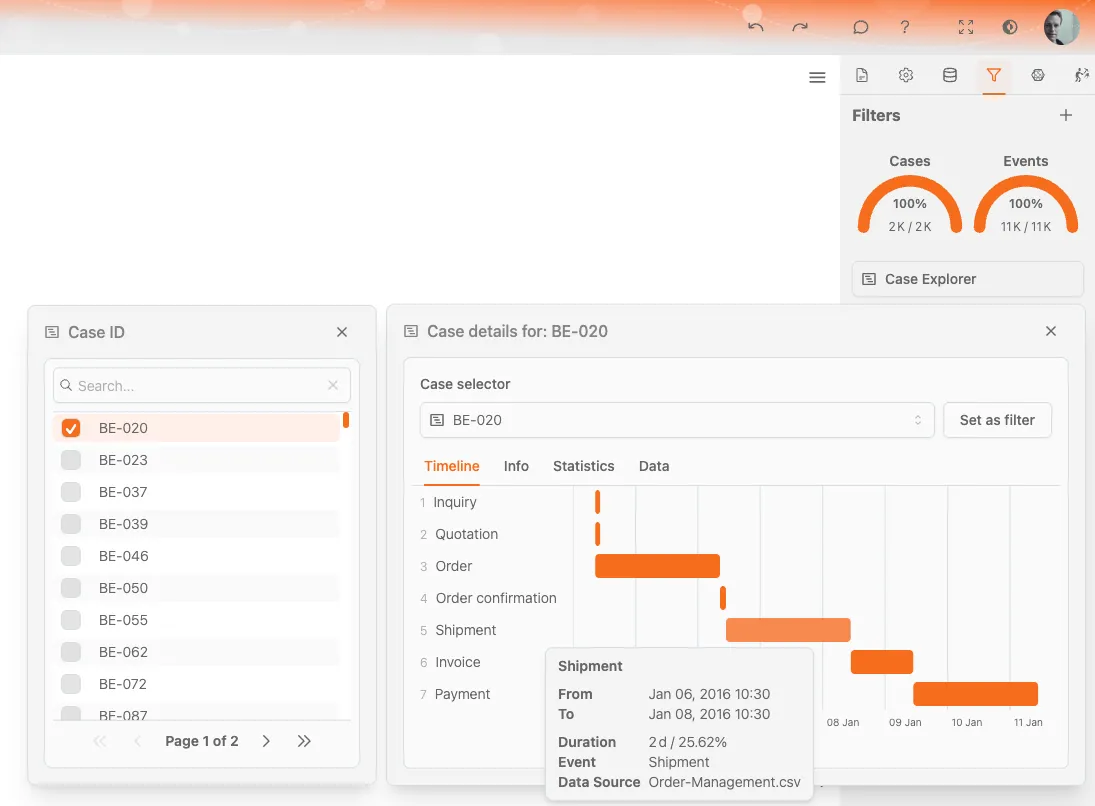
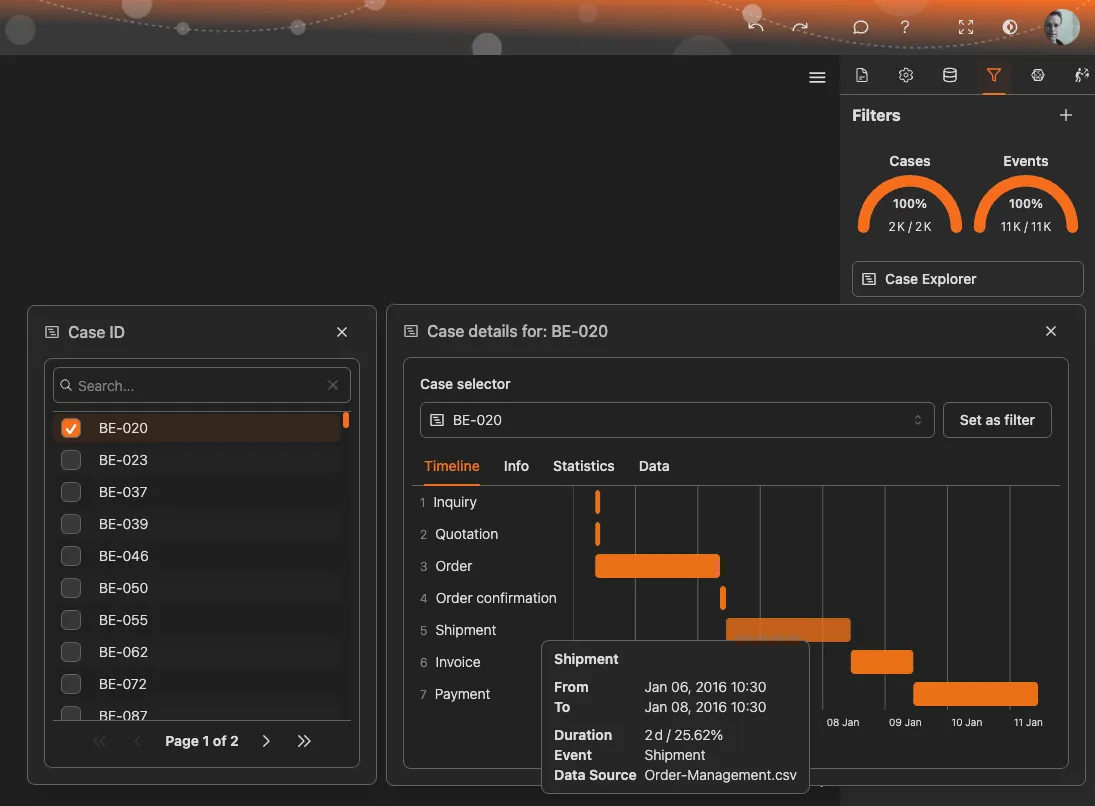
When you select a case, the detail view shows everything about that case.

[IMAGE: CaseDetails.webp]

  • Content: Screenshot showing case detail view with event timeline and attributes
  • Alt text: “ProcessMind case detail view showing event history and attributes”

Event Timeline

The event timeline shows every step the case went through:

InformationDescription
ActivityWhat happened at this step
TimestampWhen it happened
DurationHow long until the next event
ResourceWho or what performed the activity (if available)

Events are listed in chronological order, showing the complete journey of the case through your process.

Case Attributes

The attributes panel shows all data fields associated with the case:

  • Customer information
  • Order details
  • Status codes
  • Any other fields in your dataset

Visual Path

Some views show the case’s path highlighted on the process diagram, making it easy to see which route this specific case took.


Finding Interesting Cases

Outliers

Look for cases at the extremes:

  • Longest duration - Sort by duration descending
  • Most events - Sort by event count descending
  • Newest/oldest - Sort by start time

These edge cases often reveal process issues or special handling scenarios.

Specific Patterns

Use filters to find cases matching specific criteria:

  1. Apply filters for the pattern you’re investigating
  2. Open Case Explorer
  3. The list shows only cases matching your filters

Example: Filter for cases that skipped quality check, then explore those cases to understand why.

Random Sampling

Sometimes you just want to understand “normal” cases:

  1. Clear all filters
  2. Open Case Explorer
  3. Click on a few cases in the middle of the list (not extremes)

This builds intuition about typical case behavior.


Investigation Workflow

Here’s a typical workflow for using the Case Explorer:

1. Spot Something in Dashboards

You notice something unusual, maybe a spike in duration or an unexpected path frequency.

2. Filter to Relevant Cases

Apply filters to isolate the cases you want to investigate. For example, filter to the time period of the spike.

3. Open Case Explorer

The Case Explorer now shows only cases matching your investigation criteria.

4. Sort and Select

Sort by the relevant metric (duration, time, etc.) and select cases to examine.

5. Trace Through Events

Look at the event timeline for selected cases. Where did delays occur? What was different about these cases?

6. Look for Patterns

After examining several cases, look for commonalities:

  • Same resource involved?
  • Same activity causing delays?
  • Similar attributes?

7. Document Findings

Note what you discovered for your analysis summary.


Tips for Effective Case Exploration

Compare Multiple Cases

Don’t draw conclusions from a single case. Look at several cases with similar characteristics to confirm patterns.

Check Representative Cases

After filtering, make sure the cases you’re looking at are representative:

  • How many cases match the filter?
  • Are you looking at typical cases or extreme outliers?

Use Timestamps

Pay attention to timestamps, not just durations:

  • When did the case start? (time of day, day of week)
  • Were there delays between specific steps?
  • Did events happen in unusual order?

Cross-Reference Attributes

Look at case attributes alongside the event timeline:

  • Do high-value orders take different paths?
  • Do certain customers experience more delays?
  • Are specific regions affected differently?

Privacy Note

Case details may contain sensitive information. Your organization controls what data is visible in the Case Explorer based on your access permissions.