Expression Language
Create calculated attributes, define conditions, and transform data using ProcessMind's expression language.
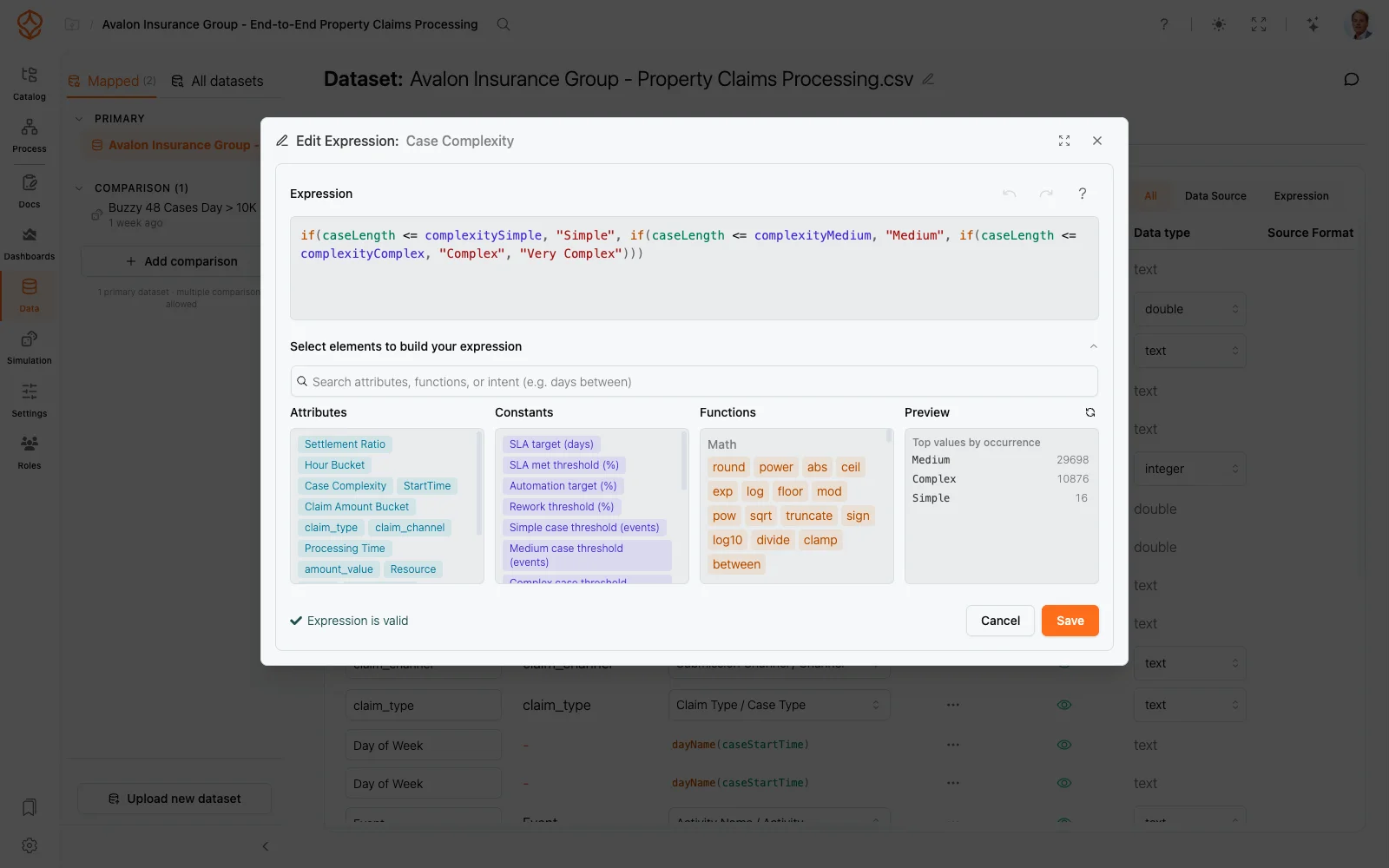
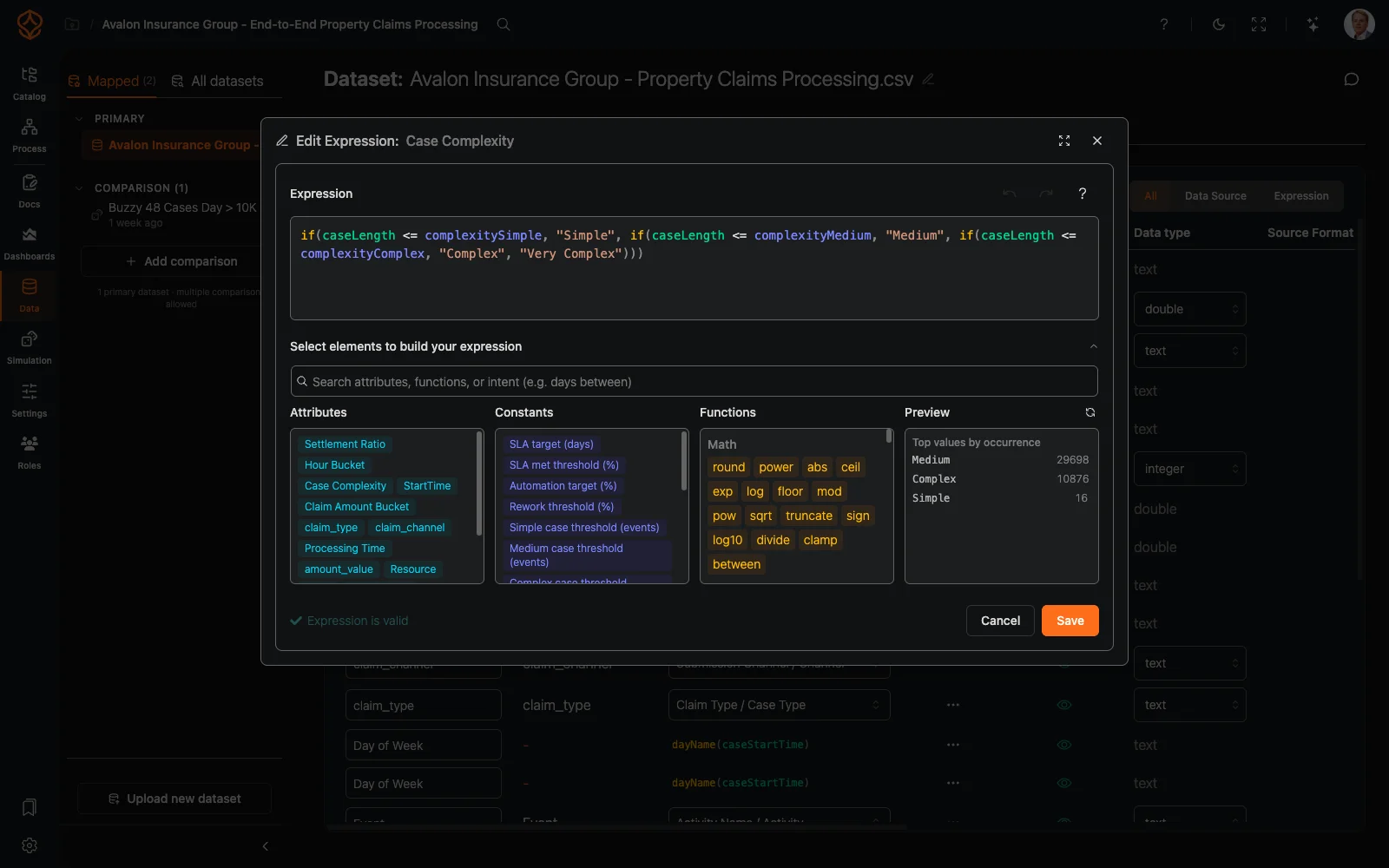
The Expression Editor is ProcessMind’s built-in tool for writing expressions. It opens wherever expressions are used — dataset attributes, dataset filters, and metric definitions — and always works the same way: write, validate, and preview before you save.
| Opened from | What you are editing |
|---|---|
| Dataset → Attributes → Mapping / Expression cell | a calculated attribute |
| Dataset → General → Global Dataset Filter → Add filter expression… | a row filter applied before mining |
| Chart settings → Metric expression → Use metric expression… | a metric expression evaluated per row |
| Chart settings → Secondary metrics → Expression… | a secondary metric expression |
| Chart settings → Text / Html chip | chart text: literal text and HTML with ${ ... } expressions |
| Chart settings → Norm settings → ƒ → Start / Stop expression | a norm boundary resolved from Process Settings constants |
The dialog title reflects what you are editing, for example Edit Expression: {attribute name} or Row Filter Expression.
The Select elements to build your expression panel lists everything you can use, grouped into sections:
previous. and start building a comparison with the previous row.The search box finds names, signatures, descriptions, and examples, and it understands intent: typing “days between” or “sum with condition” surfaces the matching functions. The help icon in the header opens the expression language documentation.
For attributes and metrics, the editor shows a live Top values by occurrence preview that updates as you type: the most frequent results with their counts, plus null and other buckets (up to 20 values). While the preview runs you see Running expression preview…; errors show Fix the expression to see a preview. Row filters do not support preview — the editor says so instead.
Chart text (Text charts, KPIs, gauges, and HTML frames) is a template: literal text stays as written, and every ${ ... } segment is evaluated. The editor validates each segment and highlights it as you write. Text, Html, metric expressions, and norm expressions all apply only when you close the editor with Save; Cancel discards the draft. Plain chart text and HTML cannot be evaluated per row, so the editor shows Preview is not available for chart text instead of the value preview.
Norm expressions are resolved against Process Settings constants (for example slaTargetDays * 86400000), so the editor offers constants and functions but no dataset attributes there.
Validation runs continuously while you edit. The status line at the bottom of the dialog shows either a green Expression is valid check or a red error such as Error at position 12: Expected ‘)’ but got …. Typical errors include unknown functions or variables, wrong argument counts, unclosed strings, and type mismatches.
Save stays disabled while the expression is invalid or row-filter restrictions apply; clearing the field and saving removes the expression. Press Ctrl/Cmd+Enter to save from the keyboard, or Cancel to close without saving.
Expressions can reference other calculated attributes. To inspect one while editing, Ctrl/Cmd+click the attribute reference in your expression — it opens in its own read-only tab. The tab bar appears as soon as a second tab exists, and the preview follows the tab you are viewing.
A row filter runs on every raw event row when the data is loaded, before mining. Only rows where the expression is true are kept; false, empty, and null results are removed. That context limits what you can use:
caseid, time, activity, cost, user, start_time, and co2).previous.), activity lookups such as first(), and followedBy expressions.If you use a blocked element, Save is disabled with the message: “Row filters can only use raw row data. Remove case properties, case aggregates, row references, activity lookups, or followed-by expressions.”
Get instant access with no credit card and no waiting. Turn the way your organization works into clear, connected process designs.
Build your process architecture, define ownership and controls, and align roles and responsibilities across every level.
Start your free trial and create one reliable foundation for governing, managing, and continuously improving your processes.
We use cookies to improve your experience, personalize content, and analyze traffic. Anonymous page measurement happens without them; analytics consent adds an identifier that links your visits. By clicking "Accept All," you consent to our use of cookies.