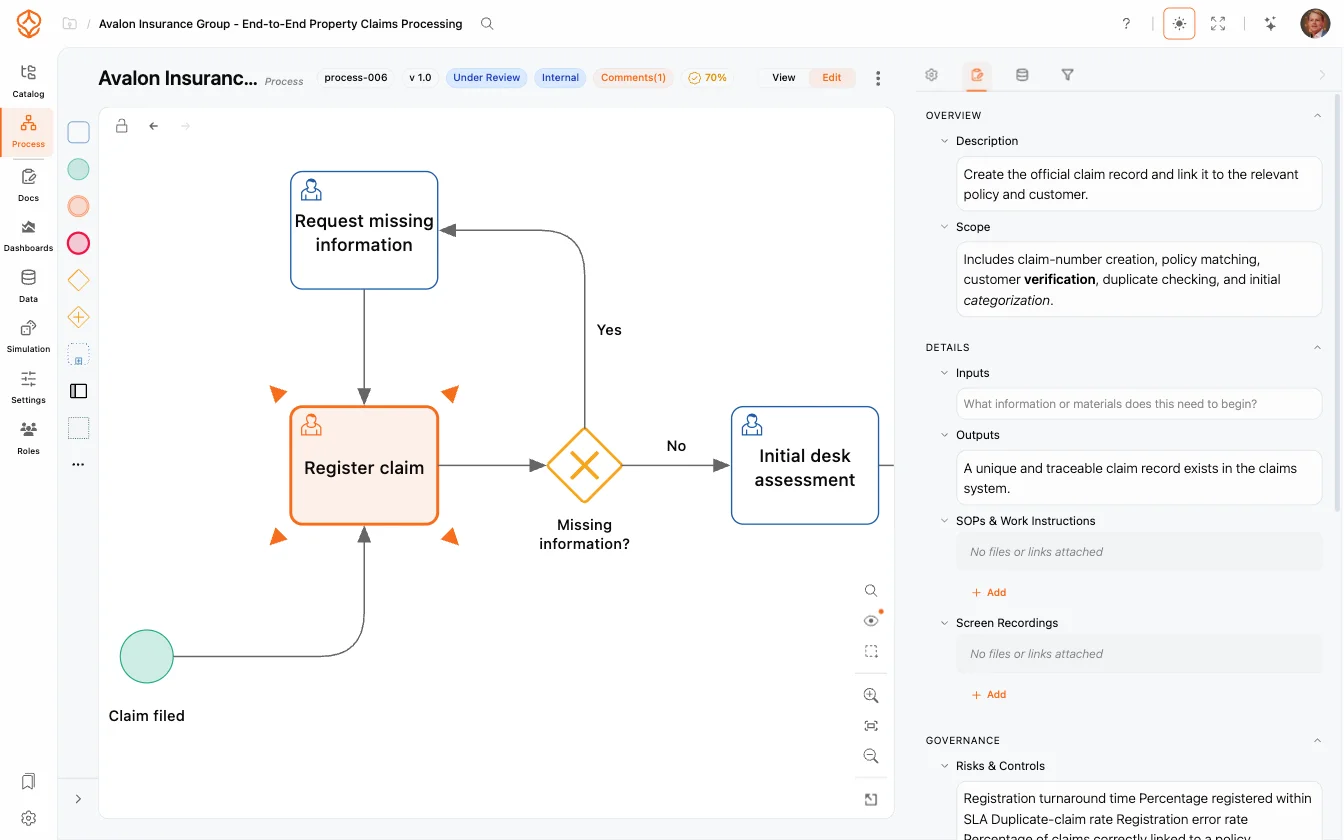
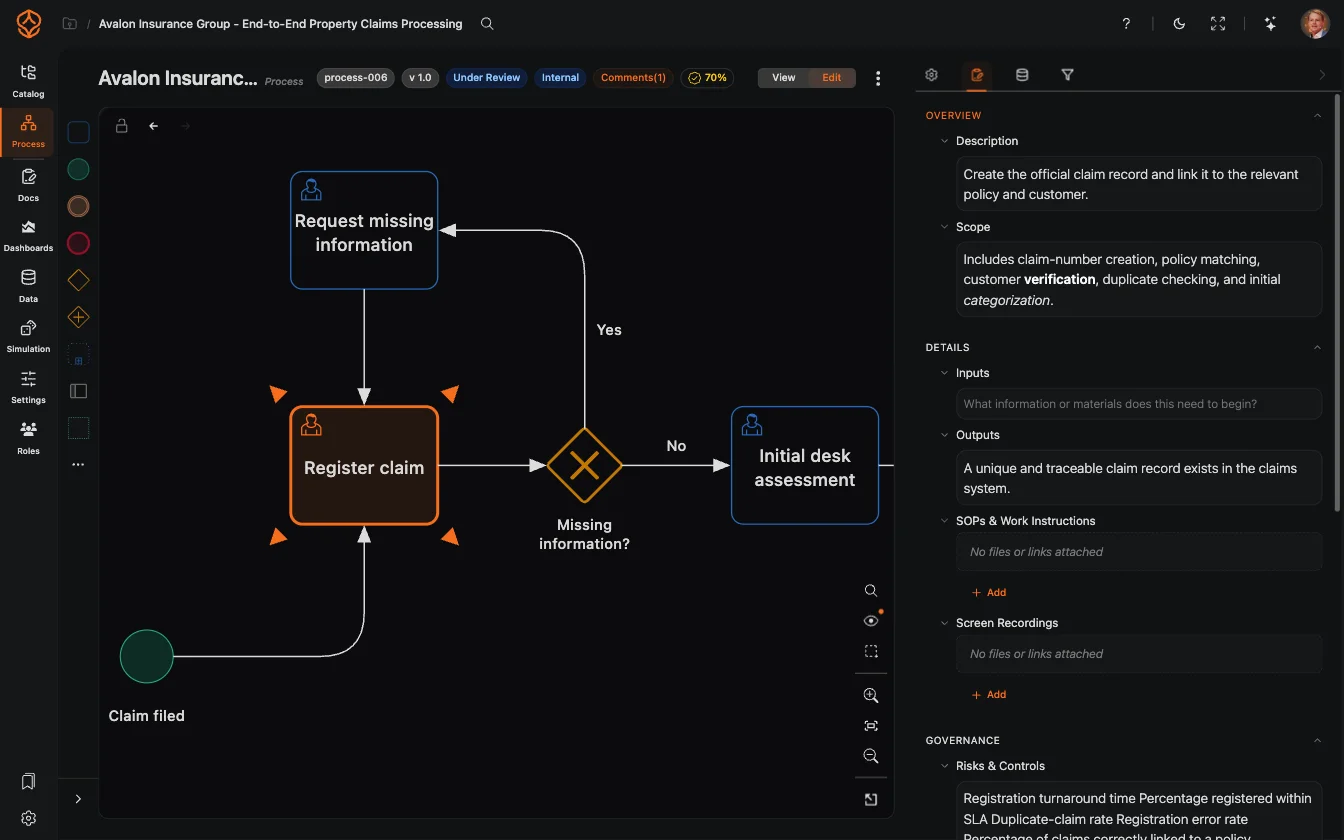
Modeling
Editor features for building BPMN models in ProcessMind: the modeling canvas, element settings, AI generation, import and export, versioning, and auto layout.
Every element in your model can be configured. Select an element (or a connection) on the canvas and use the settings tab in the right panel to change what it is and how it looks. The options you see depend on the selection: a task has different settings than an event or a connection.
For tasks, events, and gateways the BPMN section of the panel lets you change the element type without redrawing it:
Some specialized elements have a fixed function and cannot be converted; the panel tells you when that is the case.
In value stream models, tasks can be converted into VSM shapes from the Value Stream Mapping section, for example Supplier, Customer, Process Box, Inventory, Kanban Post, or KPI / Metric. Process Architecture Process Architecture Available with a Process Architecture seat or higher. Only seats on this plan or a higher one can use this feature. Compare plans
Attach an image to a task or event so it appears on the shape. Images come from the artifact library, so artifacts must be enabled for the process (Process Architecture seat and above). See Artifacts.
Select a connection to edit its Name, Arrow type (for example push flow or pull flow), and markers grouped as transportation, information, or control (for example Kanban or phone on VSM connections). From the connection menu you can also reset a connection’s route to automatic with Auto layout, or restore a moved label with Reset label position. To change where a connection starts or ends, drag its end onto another element.
More element behavior lives on the element toolbar and the other tabs of the right panel:
Get instant access with no credit card and no waiting. Turn the way your organization works into clear, connected process designs.
Build your process architecture, define ownership and controls, and align roles and responsibilities across every level.
Start your free trial and create one reliable foundation for governing, managing, and continuously improving your processes.
We use cookies to improve your experience, personalize content, and analyze traffic. Anonymous page measurement happens without them; analytics consent adds an identifier that links your visits. By clicking "Accept All," you consent to our use of cookies.