Process Simulation
Simulate your business processes to predict outcomes, test changes, and optimize workflows before implementation.
Running a simulation generates a virtual event log based on your process model and configured parameters.
Navigate to your process model and open the Simulation page for it (the Simulation entry in the left icon bar).
You can create multiple simulation configurations for the same model.
| Setting | Description |
|---|---|
| Simulation Period | The start and end dates for your simulation |
| Warm-up period | If enabled, the simulation runs for an additional period before the start date to reach steady state |
Warm-up Period
The warm-up period allows the simulation to reach a steady state before collecting data. When enabled, the simulation starts at (start date - simulation duration) and runs until the end date, but only events occurring between the start and end dates are included in the output. This is useful for eliminating initialization bias in your simulation results.
Instead of manually configuring all settings, you can use the Auto Configure button to automatically populate simulation parameters:
Quick Start
Using Auto Configure is the fastest way to get a working simulation. You can always fine-tune the generated settings afterward.
Define custom attributes that cases carry through the simulation.
Use distributions to generate numeric values. See Distributions.
Choose a generation mode:
| Mode | Description |
|---|---|
| List | Weighted random selection from predefined values |
| Numbered | Sequential IDs with prefix (e.g., “Order 1”, “Order 2”) |
| Fictional Names | Generated person names |
| Fictional Companies | Generated company names |
| Countries | Country names |
Define shared resources that constrain activity execution. See Resources for details.
Click a Start Event to configure case arrivals:
| Setting | Description |
|---|---|
| Distribution | How arrivals vary (typically Poisson) |
| Rate | Average arrivals per time period |
| Rate Unit | Per hour, day, week, month, or year |
| Periodicity | Time-based variations |
Default: Poisson distribution with 1 case per hour.
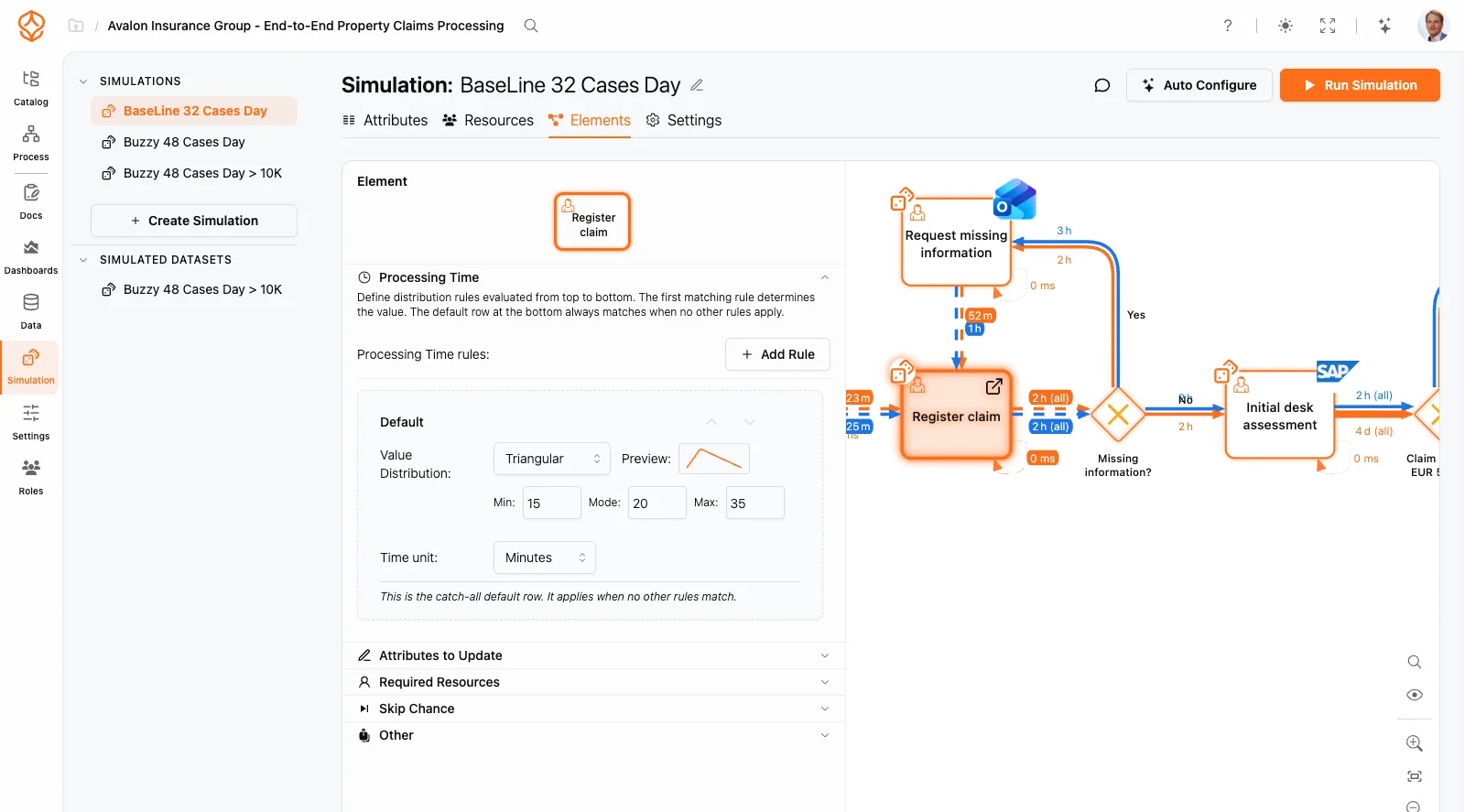
Click any Task or Event (intermediate/end events) to configure:
| Setting | Description |
|---|---|
| Distribution | How duration varies |
| Time Unit | Seconds, minutes, hours, or days |
| Periodicity | Time-based variations |
| Setting | Description |
|---|---|
| Resource | Which resource pool to use |
| Quantity | How many units needed |
Probability (0-100%) that the element is bypassed entirely. When skipped, no resources are consumed and no time passes.
Modify case attributes when the element completes.
For gateways with multiple outgoing paths, configure the probability of each path:
| Gateway Type | Behavior |
|---|---|
| XOR (Exclusive) | One path selected based on probability weights |
| AND (Parallel) | All paths taken simultaneously |
| OR (Inclusive) | Random selection, at least one path guaranteed |
Probabilities
Probabilities are relative weights, not percentages. They are normalized automatically.
The simulation stops when reaching the end date or 5,000,000 events (whichever comes first). See the Simulation Interface Reference for the full list of simulation limits.
When complete, ProcessMind creates a new dataset containing the simulated event log. Analyze it using all standard ProcessMind features:
For more on comparing scenarios, see What-If Analysis.
Get instant access with no credit card and no waiting. Turn the way your organization works into clear, connected process designs.
Build your process architecture, define ownership and controls, and align roles and responsibilities across every level.
Start your free trial and create one reliable foundation for governing, managing, and continuously improving your processes.
We use cookies to improve your experience, personalize content, and analyze traffic. Anonymous page measurement happens without them; analytics consent adds an identifier that links your visits. By clicking "Accept All," you consent to our use of cookies.