Analyzing Processes in ProcessMind
Learn how to explore, filter, and understand your process data using ProcessMind dashboards. A guide for dashboard viewers and analysts.
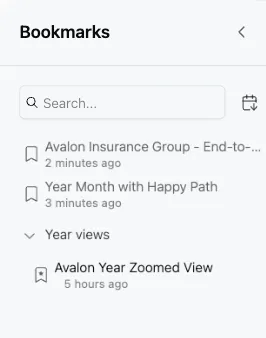
Process Bookmarks let you save specific views of your process, including all filters and settings. Use them to return to a particular analysis setup or share it with your team.
To create a bookmark:
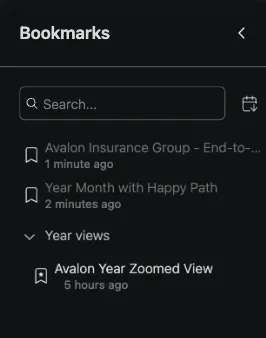
Your bookmark is now saved in the Bookmark List, which you can access from the left icon sidebar.
To update a bookmark:
Your bookmark is now updated with the latest changes.
To manage your bookmarks:
info
If you have multiple bookmarks saved for a process, you can also add them to your dashboard so you can switch between views and filter settings. To do this, use the Share link option and copy the URL into a TextChart with the following example code:
Bookmarks:
[Name of the Bookmark](https://your.processmind.url/app/bookmark/12345)
[Name of the Bookmark1](https://your.processmind.url/app/bookmark/67892)
The system will automatically create a button that links to the bookmark.
Get instant access with no credit card and no waiting. Turn the way your organization works into clear, connected process designs.
Build your process architecture, define ownership and controls, and align roles and responsibilities across every level.
Start your free trial and create one reliable foundation for governing, managing, and continuously improving your processes.
We use cookies to improve your experience, personalize content, and analyze traffic. Anonymous page measurement happens without them; analytics consent adds an identifier that links your visits. By clicking "Accept All," you consent to our use of cookies.