Dataset Attributes
Map, validate, and format dataset columns for process mining. Learn how to configure attributes for accurate analysis in ProcessMind.
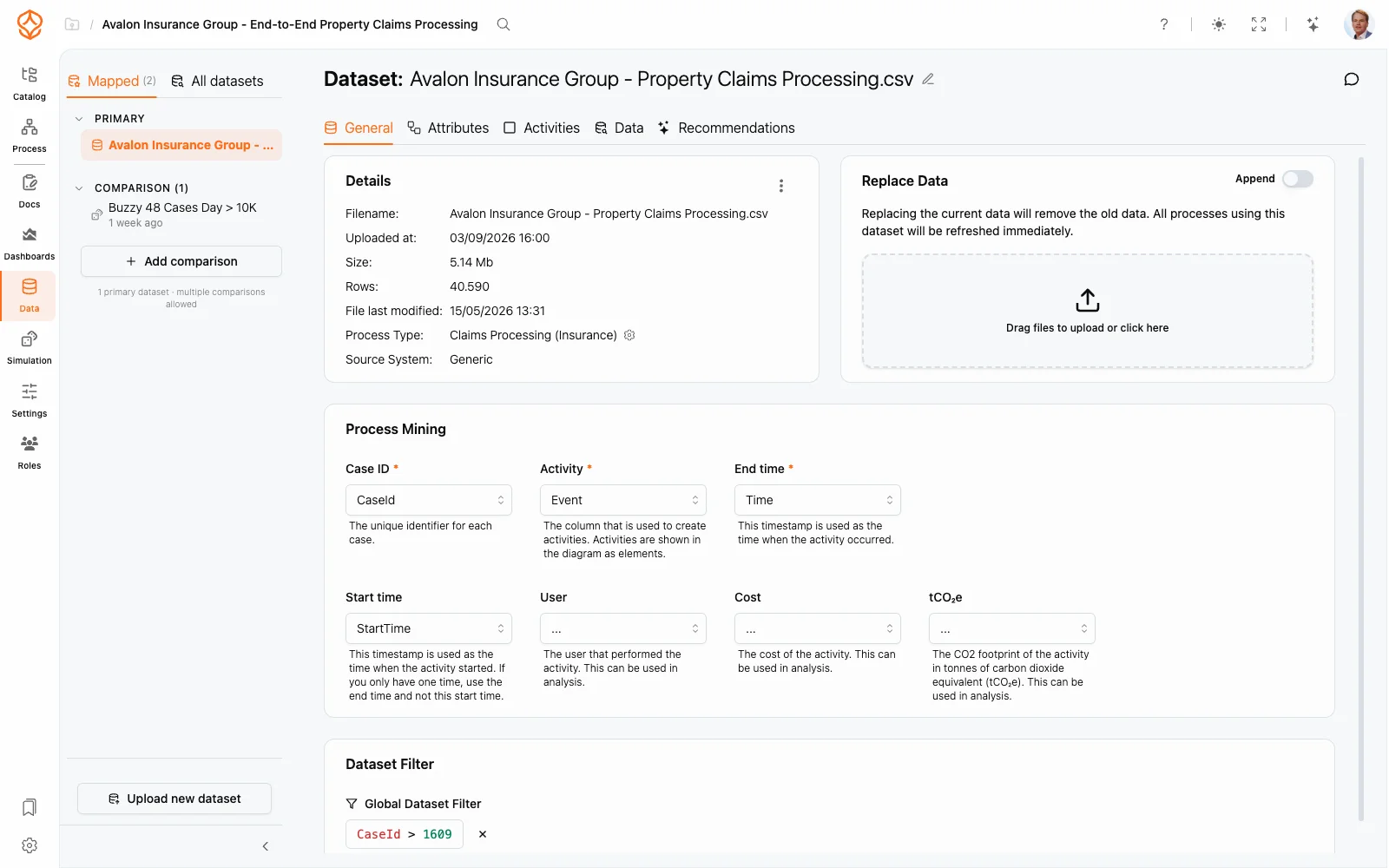
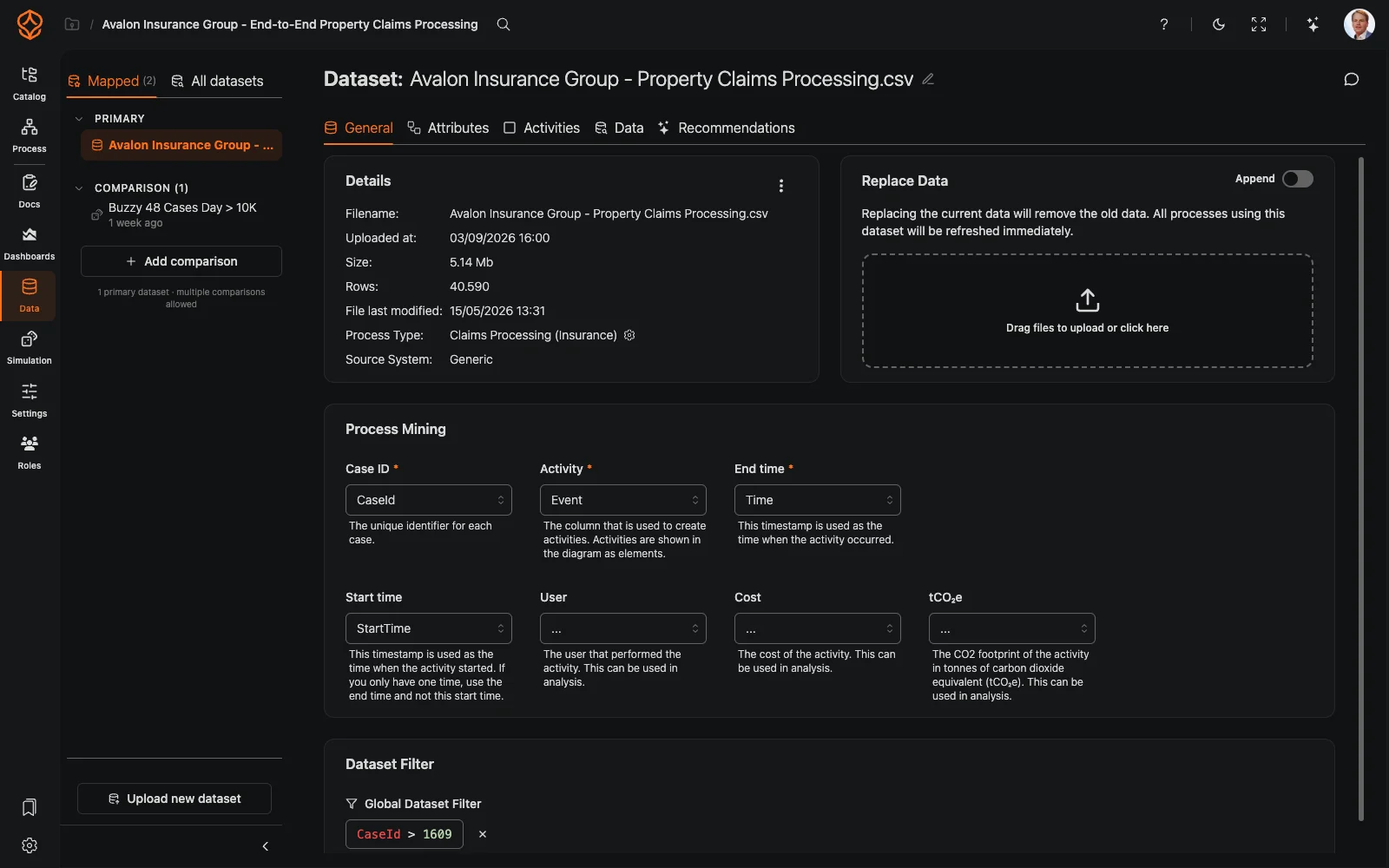
Once your dataset is fully uploaded, ProcessMind opens its Dataset screen. This is where you configure how your data is interpreted for process mining: which columns hold the case, the activity, and the timestamps, what the uploaded file contains, and which rows to analyze. The same screen is used for every supported file format.
Two related guides help you prepare and use your data:
The header shows Dataset: followed by the name of the open dataset. Click the name to edit it and give it something recognizable, such as Customer Orders Data or Incident Reports. The header also carries the comment button and the dataset quality badge.
Below the header, the dataset is configured in tabs:
When something still blocks analysis, a red list appears above the panels. It points at the missing piece: Case ID, Activity, or End time in the Process Mining panel, activities without data, attributes without values, or a mismatch between a re-uploaded file and the selected process type.
The left panel uploads new rows:
For simulation datasets, this panel only states that the dataset was generated by a simulation.
The right panel lists what ProcessMind knows about the file:
The settings icon next to Process Type opens Process Type Settings, where you pick another process and system or click Auto detect process and system and then Save. Changing either one may change all column mappings.
The menu (⋯) in the panel header offers Add to model, Download, Show usage to see which processes use the dataset, and Get Data Table ID for the data table and tenant IDs used in API calls.
Map the columns process mining needs. The three required fields are:
The optional fields add context to the analysis:
The Global Dataset Filter narrows the rows ProcessMind analyzes. Click Add filter expression… to build a row filter in the expression editor; the filter applies wherever the dataset is used.
Once these are in place, ProcessMind uses the dataset for discovery, dashboards, and simulation without further setup.
We use cookies to improve your experience, personalize content, and analyze traffic. By clicking "Accept All," you consent to our use of cookies.