Master Data Mapping for Process Optimization
Learn how data mapping in ProcessMind connects your event data to process models for analysis and visualization.
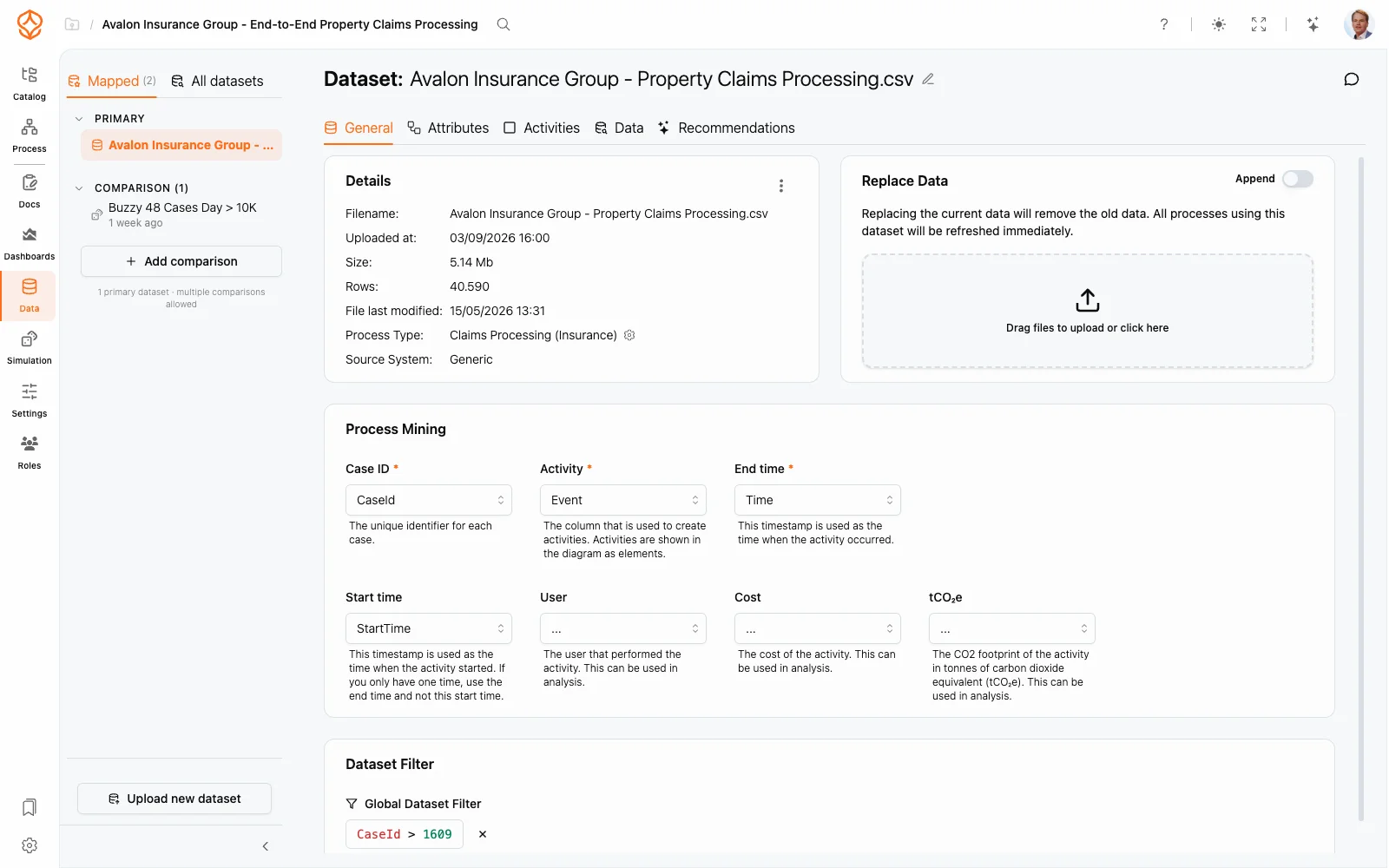
A model can be mapped to more than one dataset. Exactly one of them is the primary dataset; the others are comparison datasets. The primary drives your dashboards and KPIs, while comparisons overlay the same model in their own colors so you can compare how different groups — time periods, regions, teams — move through the process.
Dashboards, KPIs, and most analysis start from the primary dataset. If no primary is selected, the model’s Data Mapping tab shows No primary dataset selected and prompts you to add one.
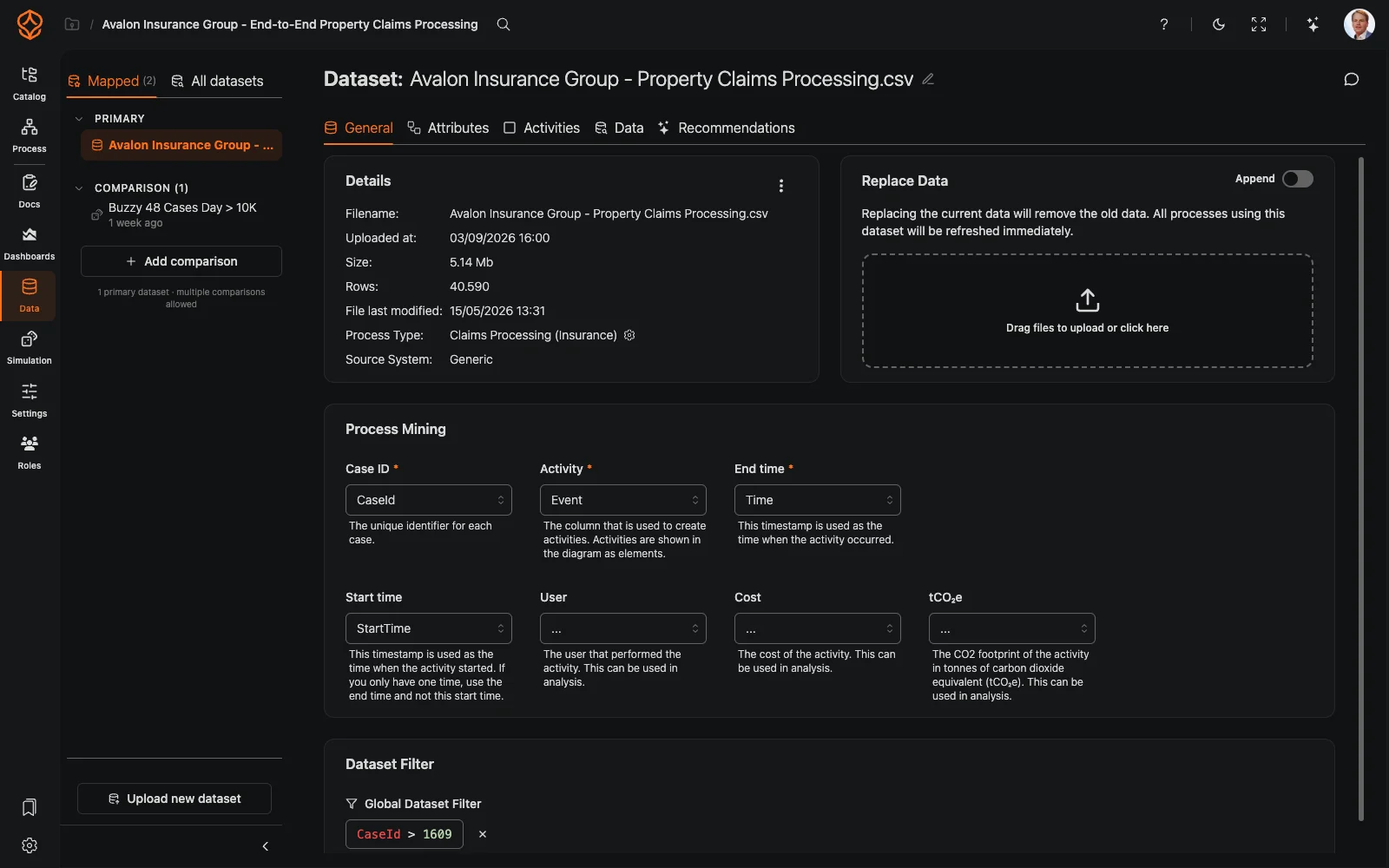
Open Data and look at the dataset sidebar:
Inside a model, open the Data Mapping tab in the right panel. The Primary Dataset and Comparison Datasets accordions show the mappings, and Add Data to Compare adds another comparison. Each row has:
Remove data from model unlinks the dataset from the model only — the dataset itself stays in your workspace.
Get instant access with no credit card and no waiting. Turn the way your organization works into clear, connected process designs.
Build your process architecture, define ownership and controls, and align roles and responsibilities across every level.
Start your free trial and create one reliable foundation for governing, managing, and continuously improving your processes.
We use cookies to improve your experience, personalize content, and analyze traffic. Anonymous page measurement happens without them; analytics consent adds an identifier that links your visits. By clicking "Accept All," you consent to our use of cookies.