Modeling
Editor features for building BPMN models in ProcessMind: the modeling canvas, element settings, AI generation, import and export, versioning, and auto layout.
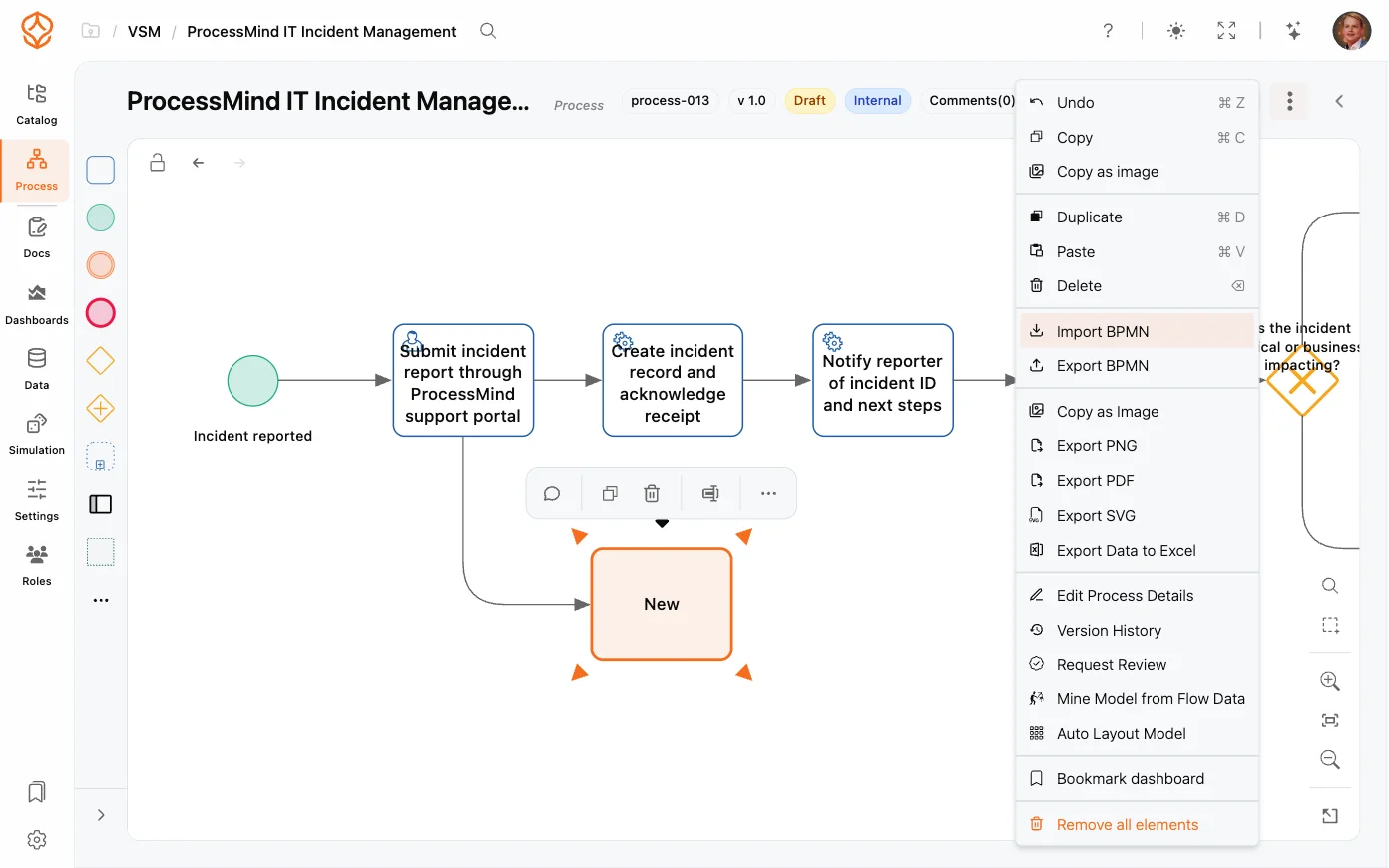
ProcessMind offers full support for the BPMN 2.0 standard, making it simple to import and export BPMN models. This guide shows you how to bring BPMN files into your process models and which BPMN elements are supported in ProcessMind. You can try it on one of your own files with a free trial.
You can import BPMN 2.0 files into ProcessMind in two ways:
ProcessMind follows the BPMN 2.0 standard but focuses on the elements that are essential for process modeling. Some metadata or execution-specific attributes may not be supported.
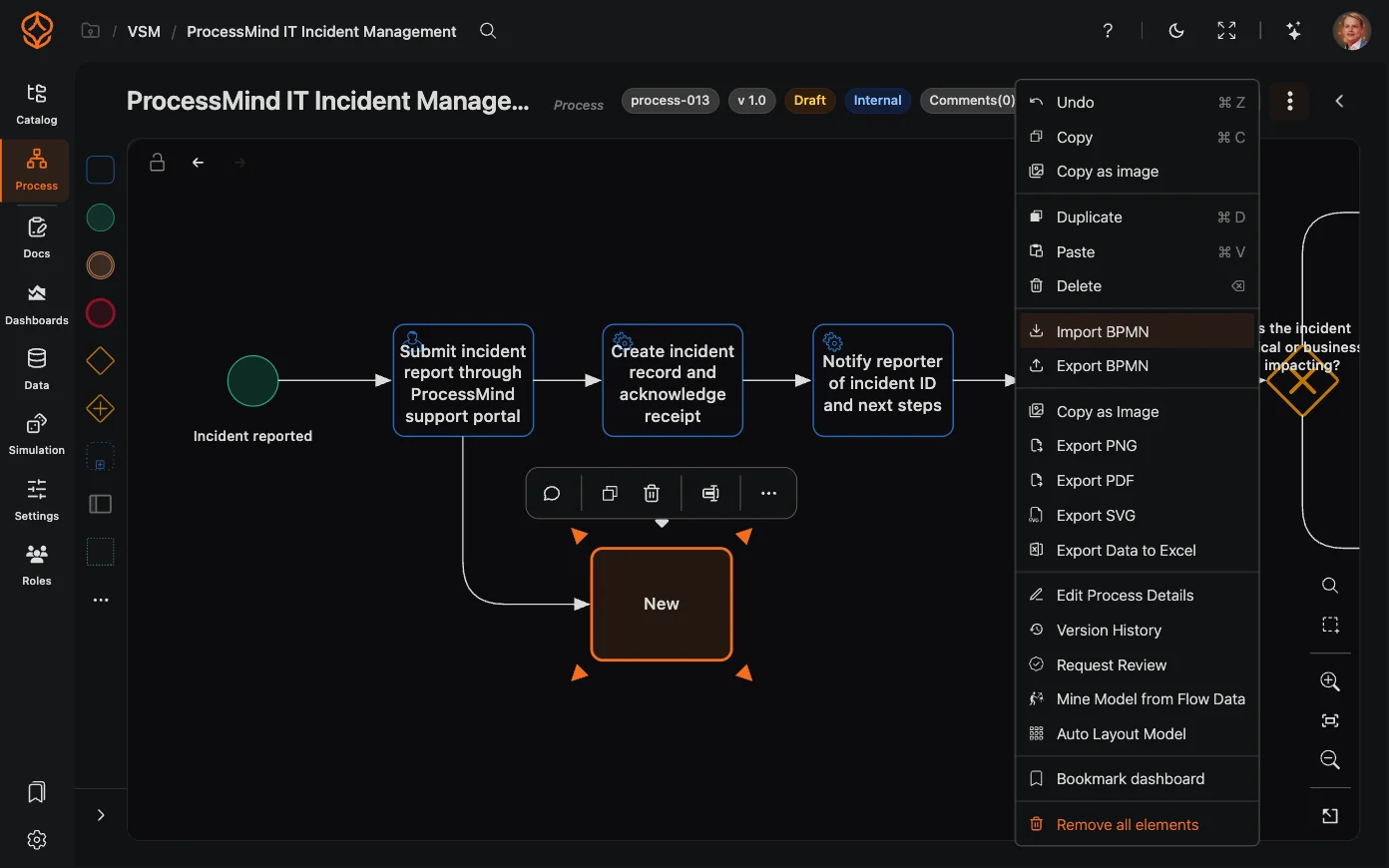
Exporting BPMN models works the same way: open the process menu on the design canvas and select Export BPMN. Your current process model downloads in BPMN 2.0 format, compatible with other BPMN-compliant tools and systems.
The export writes the whole model, not just its flow:
bpmn:dataInputAssociation / bpmn:dataOutputAssociation of that activity, so the direction of the link is part of the file.What does not travel with the file
Element images are not part of the BPMN export — export a PNG instead if you need them (see Element Icons). Association direction is not modeled either: a directional or bi-directional association from an imported file is exported as a plain association (a link to a data object or data store is the exception — see above). Documentation attached to a connection (a sequence flow, association or message flow) is imported into the model but not written back — the export writes the documentation of elements.
Explore the complete list of BPMN elements supported in ProcessMind.
Get instant access with no credit card and no waiting. Turn the way your organization works into clear, connected process designs.
Build your process architecture, define ownership and controls, and align roles and responsibilities across every level.
Start your free trial and create one reliable foundation for governing, managing, and continuously improving your processes.
We use cookies to improve your experience, personalize content, and analyze traffic. Anonymous page measurement happens without them; analytics consent adds an identifier that links your visits. By clicking "Accept All," you consent to our use of cookies.