Element & Connection Menus
Learn what you can do when you click on activities and connections in the process diagram. Quick access to filters, metrics, and details.
Efficient navigation helps you focus on analysis rather than searching for features. This guide covers all the ways to move around and manage your views in ProcessMind.
The Process List is your starting point for accessing dashboards.
Click the Process List icon in the left sidebar to see all processes you have access to.
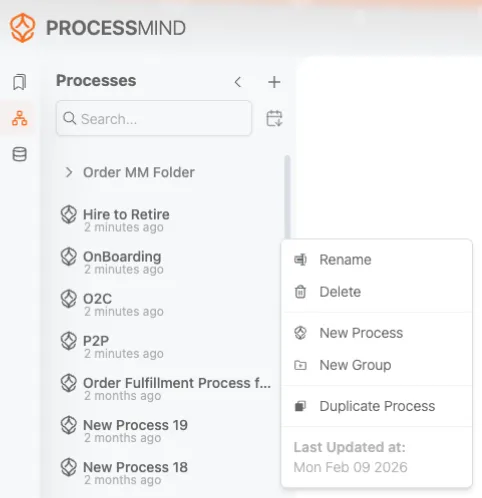
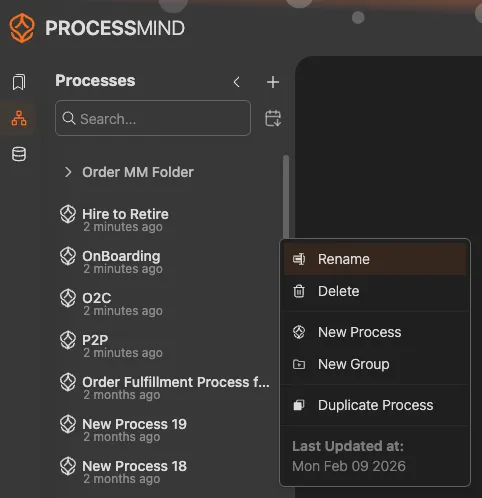
Click on any process name to open its dashboard. The process diagram and charts will load in the main canvas.
Bookmarks save your current view including filters, chart settings, and zoom level. They’re essential for returning to specific analyses.
Click the Bookmark icon in the left sidebar to see saved bookmarks.
| Action | How |
|---|---|
| Open a bookmark | Click its name in the list |
| Search bookmarks | Use the search box at the top |
| Organize | Drag to reorder or move to folders |
Sharing Bookmarks
Bookmarks can be shared with team members. Click the Edit icon next to a bookmark and select Share Link to generate a shareable URL.
For more details, see Process Bookmarks .
View controls help you see exactly what you need on the canvas.
The Select control is the first icon in the view controls. It allows you to select elements on the canvas for filtering or inspection.
Multiple elements can be aligned with the alignment controls that appear when multiple elements are selected.


Zoom in to see details of specific parts of your process:
+ or - keysZoom to selection: Select an element and zoom controls will center on it.
Pan to move around the canvas without changing zoom level:
Click Fit to automatically adjust zoom and position so the entire process fits in your screen. This is useful when you’ve zoomed in and want to see the big picture again. You can also right-click anywhere on your canvas to zoom to fit.
The minimap provides an overview of your entire process, showing where you’re currently viewing.
Click the Minimap button in the view controls to show or hide the minimap.
The minimap is especially helpful for large processes where you need to navigate between distant parts quickly.
The detail slider can be found on the right panel under filters. The detail slider controls how much of your process is visible in the diagram. Complex processes with many activities and paths can be overwhelming. The detail slider lets you simplify the view.


The detail slider filters the process diagram based on frequency:
As you move the slider left, less frequent elements fade out, leaving you with a cleaner view of the main process flow.
| Situation | Slider Position |
|---|---|
| Getting an overview | Less detail (left) |
| Understanding the main flow | Less detail (left) |
| Investigating edge cases | More detail (right) |
| Finding all variations | More detail (right) |
| Presenting to stakeholders | Less detail (left) |
The detail slider is different from filters:
Use the detail slider for visual clarity; use filters when you want to analyze a specific subset.
Pro Tip
Start with the slider at minimum detail to understand the happy path, then gradually increase detail to see where cases deviate.
| Action | Result |
|---|---|
| Single click | Select one element |
| Shift + click | Add to selection |
| Click empty space | Clear selection |
| Esc key | Clear selection |
Click on any element to access its context menu with quick actions like filtering and viewing details.
View State
Your current view (zoom, pan position) is temporary unless you save it as a bookmark. Refreshing the page will reset to the default view.
We use cookies to enhance your browsing experience, serve personalized content, and analyze our traffic. By clicking "Accept All", you consent to our use of cookies.