Navigating Dashboards
Learn how to move around ProcessMind dashboards efficiently. Master view controls, bookmarks, and navigation tools.
Clicking on activities and connections in the process diagram gives you quick access to relevant actions and information. This is often the fastest way to explore your data. When you click on an element, a menu bar will pop up with basic controls for copying, renaming, and deleting the element. Additionally, there are some context-specific actions that depend on whether you clicked an activity or a connection. These actions are designed to help you quickly filter your data, view relevant metrics, and explore details without leaving the diagram.
Let’s take a closer look at the options available when you click on an activity or connection in the process diagram.
Click on any activity (box) or connection (arrow) to select it:
Shift + Click to select multiple elements:
When you select an activity or connection, a details panel opens. This panel is organized into tabs that let you explore relationships, filters, mappings, and documentation related to the selected element.
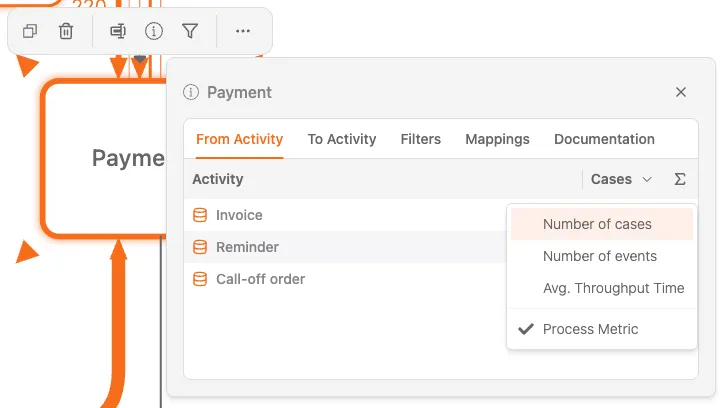
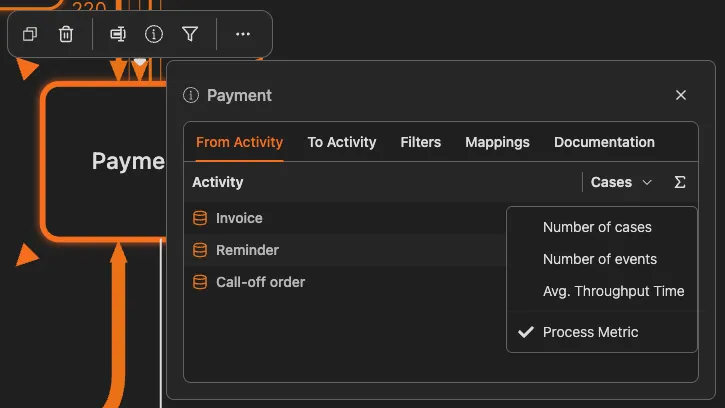
This tab lists all activities that directly precede the selected activity, including a Cases column showing how many cases flow from each source activity. Values can be sorted to help identify key sources.
This tab lists all activities that directly follow the selected activity, including a Cases column indicating how many cases continue to each next step.
This tab provides two filter options:
Selecting a filter immediately updates the diagram and all metrics.
This tab shows how the selected activity is mapped to higher-level or logical activities. It includes:
This tab displays rich-text documentation linked to the activity, such as policies, agreements, or work instructions. The documentation is read-only during analysis and scrollable for longer texts.
When an activity is selected, the details panel shows:
When a connection is selected, the details panel shows:
You can change what metric is displayed on the process diagram.
The process diagram can show different metrics on activities and connections:
| Metric Type | What It Shows |
|---|---|
| Frequency | How often each element occurs |
| Case Count | Number of cases through each element |
| Time | Duration (wait time, processing time, or total) |
| Cost | Cost associated with each element (if available) |
The visual intensity (color saturation or line thickness) indicates the metric value. Higher values appear more prominent.
Compare Metrics
Switch between different metrics to understand your process from multiple angles. High frequency doesn’t always mean long time, and vice versa.
When you select a connection (a path between two activities), the details panel opens with a simplified set of tabs compared to activities.
Only two tabs are available for connections:
When you select an activity or connection, a details panel opens. This panel is organized into tabs that let you explore relationships, filters, mappings, and documentation related to the selected element.
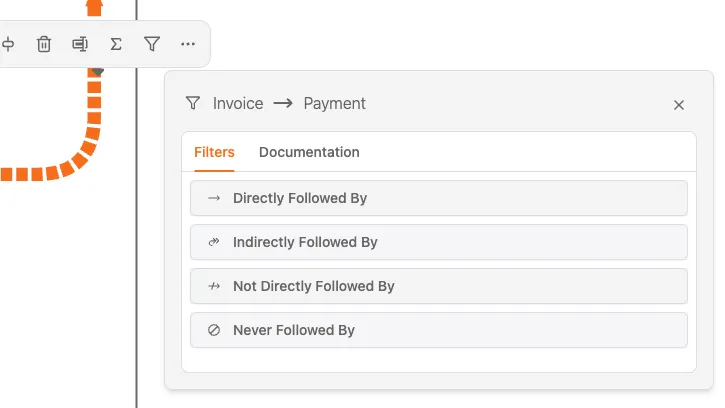
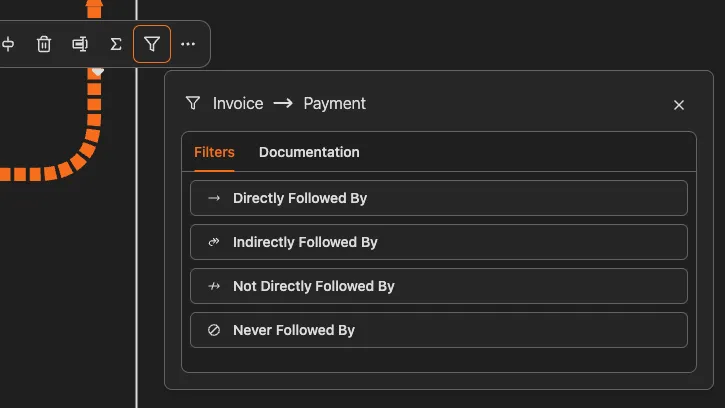
This tab contains path-based filter actions for the selected connection:
When you click one of these filter actions, a process filter is applied immediately and becomes visible in the Filters section of the right-side filter panel.
This tab shows documentation related to the selected connection.
If no documentation is available for the connection, the panel displays a clear “No documentation for this element” message.
Here are common analysis patterns using the details panel:
The process diagram uses visual cues to highlight information:
Start with the busiest paths - Click on thick connections first. They represent your main process flow
Look for thin connections - These rare paths often indicate exceptions or problems worth investigating
Compare start to end - Select the first activity, note its metrics, then compare to the last activity
Use filters progressively - Double-click to filter, analyze, then add more filters to narrow down
Check the details panel - Always look at the detailed metrics; the diagram shows only one metric at a time
We use cookies to enhance your browsing experience, serve personalized content, and analyze our traffic. By clicking "Accept All", you consent to our use of cookies.