

Standard Operating Procedure Examples: 3 Worked SOPs
Review three standard operating procedure examples with steps, systems and exceptions. Learn what an SOP needs and how to keep it current.

A standard operating procedure example is most useful when it shows the actual steps, systems and exceptions, not just a list of headings. Below are three worked examples, followed by the anatomy of a procedure you can maintain, the way to document it where the work happens, and a practical check on whether it still reflects the work.
What is a standard operating procedure?
An SOP describes how a recurring task is performed: who does it, in what order, in which system, and what to do when the usual path does not apply. It gives your team a shared reference for carrying out the work and training new people, and it is only as good as the last time someone checked it against the work.
How is an SOP different from a policy, work instruction or process map?
These documents serve different purposes:
- A policy states what your organization has decided. For example, “All invoices above 10,000 require dual approval.”
- A work instruction explains how to perform a specific step, such as which screen, field or button to use. An SOP says what happens next; a work instruction says how to do that step.
- A process map shows how work flows across roles and systems. An SOP describes one task in more detail. See our guide to process mapping.
Write an SOP for the person doing the work, including when they need to make a decision or handle an exception.
Three standard operating procedure examples
Each example uses a step table with a role, system, expected output and exception path. Those details make a procedure easier to follow, and easier to compare with work recorded in your systems.
Example 1: Invoice exception handling in shared services
This procedure starts when an invoice fails the three-way match. The exception column explains what to do when a step does not go as planned.
| Step | Who | System | Output | If it goes wrong |
|---|---|---|---|---|
| 1 | AP clerk | ERP | Exception case created with the reason code | No reason code: route to the AP team lead before investigating |
| 2 | AP clerk | ERP, supplier portal | Difference identified: price, quantity or delivery | Price within 2% tolerance: book the invoice and log the variance |
| 3 | Buyer | ERP | Confirmation that the goods were received as ordered | Buyer unavailable for 2 days: escalate to the category manager |
| 4 | AP clerk | ERP | Credit note requested or invoice approved for payment | Supplier disputes the credit note: move to the dispute procedure, do not leave the case open |
| 5 | AP team lead | ERP | Case closed with the reason recorded | Same reason code appears three months running: raise a process change request |
The final row gives the team a way to flag a recurring issue for review. It does not assume that every exception needs the same fix.
Example 2: Goods receipt and put-away
| Step | Who | System | Output | If it goes wrong |
|---|---|---|---|---|
| 1 | Goods-in operator | WMS | Delivery checked against the ASN | No ASN: create a manual receipt and flag the supplier |
| 2 | Goods-in operator | WMS | Quantity and damage recorded | Damage found: photograph, quarantine the pallet, notify procurement |
| 3 | Quality inspector | QMS | Release decision for the batch | Batch on hold: goods stay in quarantine; do not start put-away |
| 4 | Warehouse operator | WMS | Put-away under the suggested location | Location blocked: use the overflow bin and record it |
| 5 | Warehouse operator | WMS | Stock available for picking | Receipt posted after the cut-off: check whether open orders need re-planning |
Example 3: Incident triage on an IT service desk
| Step | Who | System | Output | If it goes wrong |
|---|---|---|---|---|
| 1 | Service desk agent | ITSM | Incident logged with service, impact and urgency | No user reachable: log on behalf of the user with the source recorded |
| 2 | Service desk agent | ITSM, CMDB | Priority set from the impact and urgency matrix | Priority disputed by the resolver group: escalate to the service owner; do not renegotiate silently |
| 3 | Resolver group | ITSM | Diagnosis and fix attempt within the SLA window | Fix needs a change: link the change record and keep the incident open |
| 4 | Service desk agent | ITSM | User confirmation and closure | User does not confirm within 3 days: close with the reason recorded |
What belongs in an SOP?
Use this anatomy as a starting point for your next standard operating procedure:
- Purpose and scope: State what the procedure covers and what it does not. Clear boundaries help keep one SOP focused on one task.
- Trigger: Identify the event that starts the procedure so your reader can tell when it applies.
- Roles: Name responsibilities by role rather than by individual. People change; roles are more stable.
- Numbered steps and systems: Describe each step, who performs it and which system they use.
- Exception path: Explain what to do when the normal route does not apply. Include common deviations, not just the ideal case.
- Controls and evidence: State what to record, where to record it and how long to keep it.
- Owner and revision history: Name the person responsible and record the date and nature of each change.
- Review trigger: Specify what should prompt a review, such as a system, regulation or team change, or a measured shift in performance.
A revision history shows what changed and when. A review trigger gives you a reason to revisit the procedure before it becomes outdated.
How can you check whether an SOP is ready to use?
Before publishing or revising a procedure, ask:
- Does the scope state what the SOP does not cover?
- Is the trigger clear near the start?
- Does each step name a role, a system and an expected output?
- Do the steps that happen in an application show the screen the reader will see?
- Does the procedure explain what to do when the normal path does not apply?
- Is there a named owner and a revision history?
- Does a specific event trigger a review?
- Can you compare the procedure with event data, and have you checked any differences with the process owner?
If you cannot answer the last question, start by identifying which systems record the work. That gives you a way to check whether the procedure still reflects what happens in practice, and it turns the SOP process into a review cycle rather than a filing exercise.
How to manage SOPs
SOP creation is the easy half. Managing an SOP program is the harder half: where the procedure lives, which version is current and who reviews it. Whether you run dedicated standard operating procedure management software or a folder of documents, a copy per team is the version that goes stale. ProcessMind keeps the procedure with the process it describes, so the governance travels with the text:
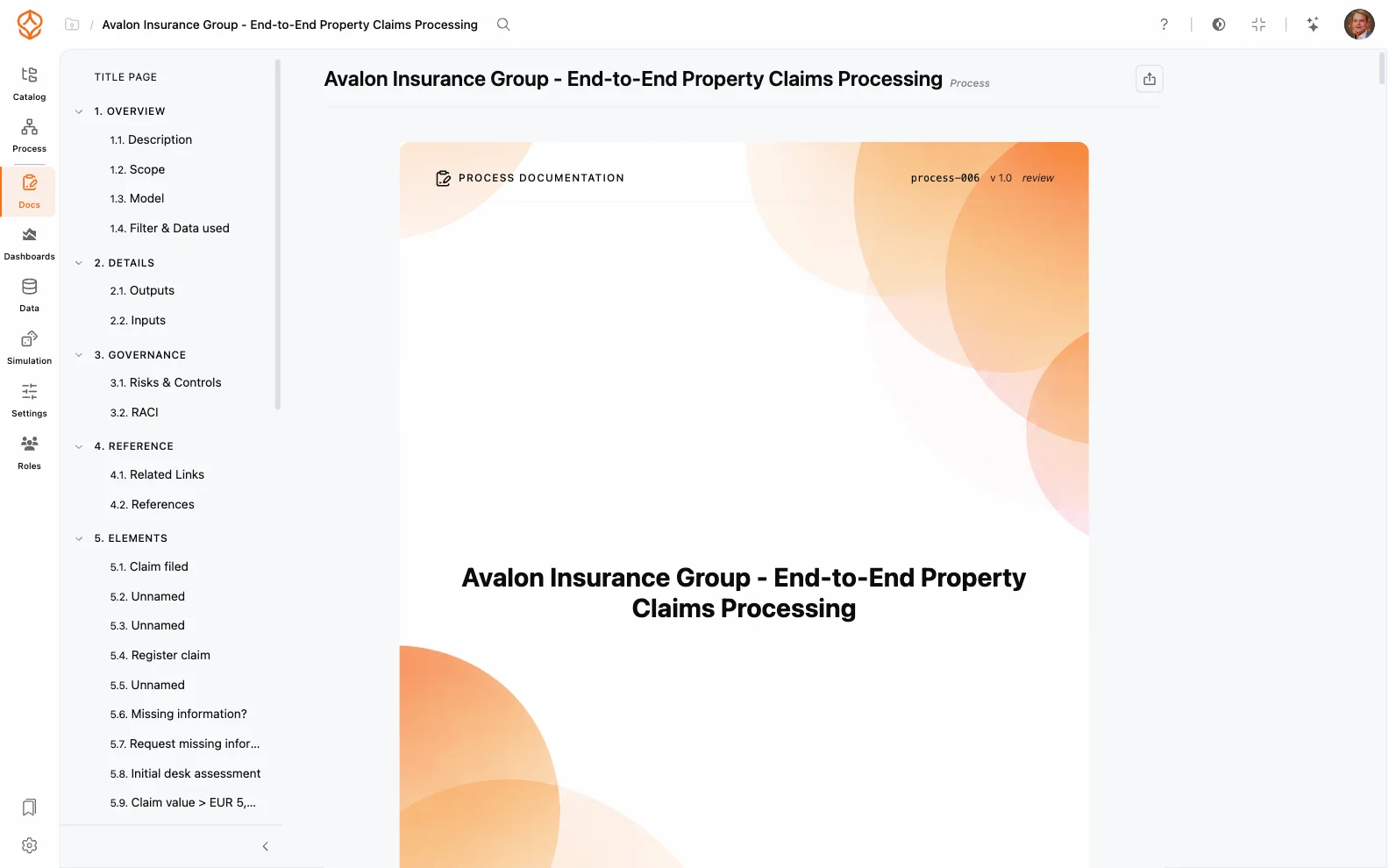
- Add the procedure to the activity it describes. Every process has a doc tree of sections, configured once at the environment level, so each procedure starts from the same description, scope, roles, goals and governance headings. Add custom sections where your organization needs them, and keep the work instruction with the step it belongs to instead of in a folder someone has to find.
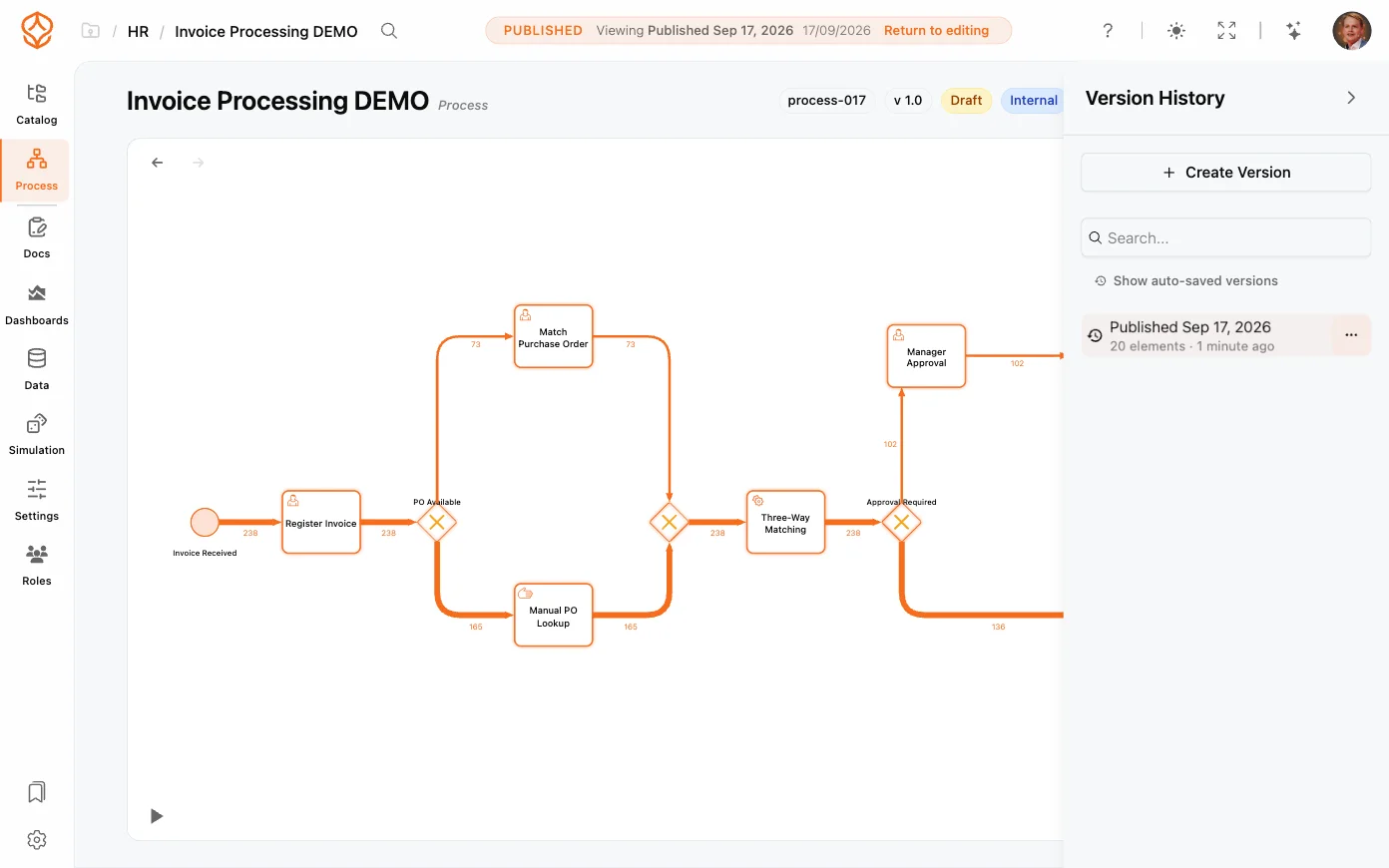
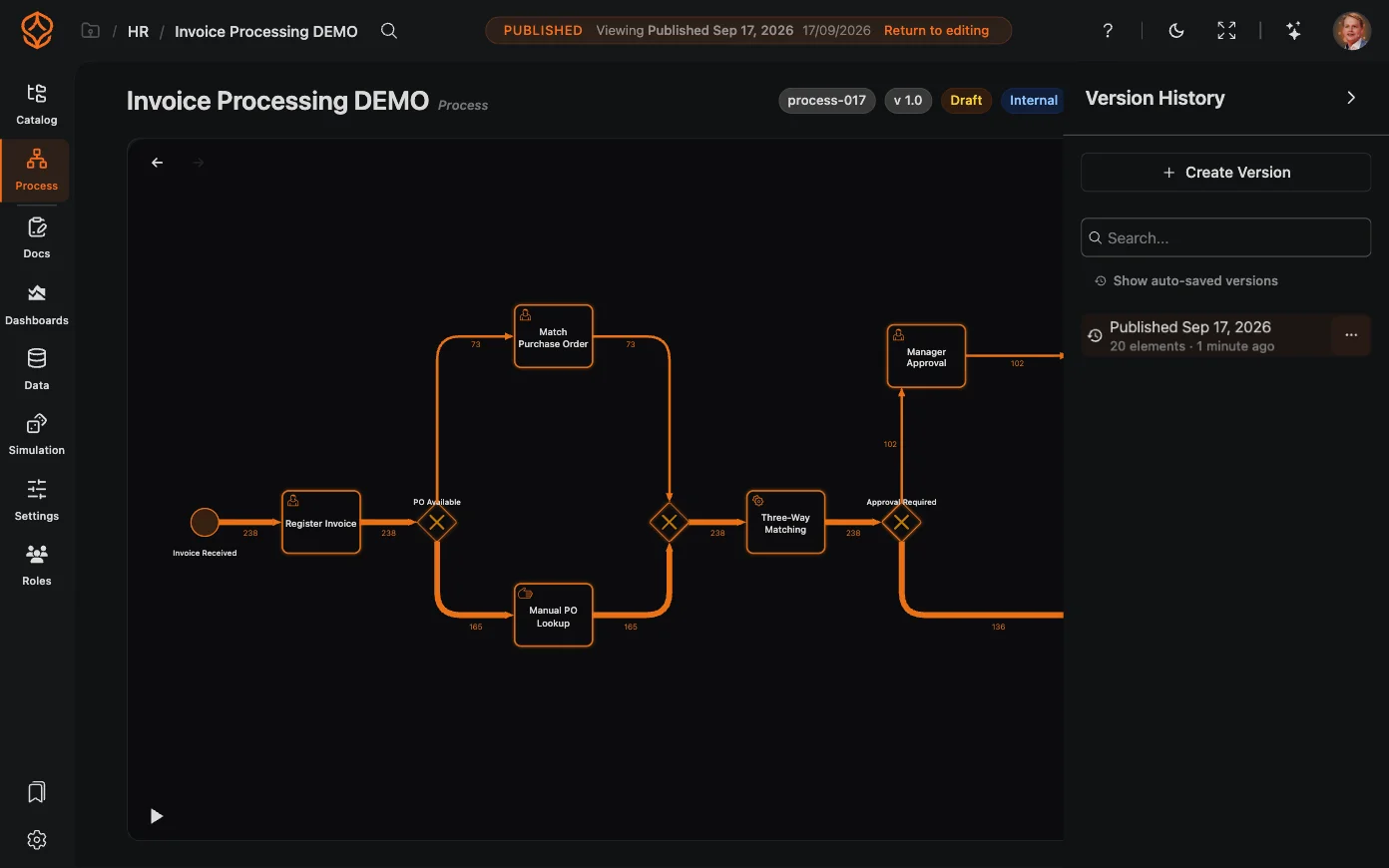
- Review it with the rest of the process. A process moves through draft, under review, approved, published, retired and archived. Reviewers find their work in a needs my review filter, and an approval can create a published version in the same step, so a document is never approved in one place and changed in another.
- Comment where the work is. Add comment on the step starts a discussion on that activity, so a question about a field, a control or an exception stays next to the instruction instead of disappearing into an inbox.
- Keep the versions. Version history records what changed, when and by whom, and publishing decides which version readers see.
- Take the roles from the model. The RACI matrix in the document is filled from the roles assigned to the activities in the model, so ownership in the text follows ownership in the diagram.
- Capture the screen steps where the work happens on a screen. Take a screenshot or a screen recording from inside ProcessMind, crop it to the controls that matter, black out personal information so it is fixed in the saved image, and add instructions in Markdown. The editor can also detect likely sensitive fields for you, and the boxes stay editable so you can correct them before saving. The capture is stored as an artifact attached to the activity.
- Export for the reader who needs a file. Word for review cycles and for a quality system, Markdown for version control, PDF and print for distribution and archives. Export settings decide whether the output also lists model elements that have no documentation yet, the process charts, and the RACI per activity. Listing the undocumented elements is often the quickest way to see where the procedure has gaps.
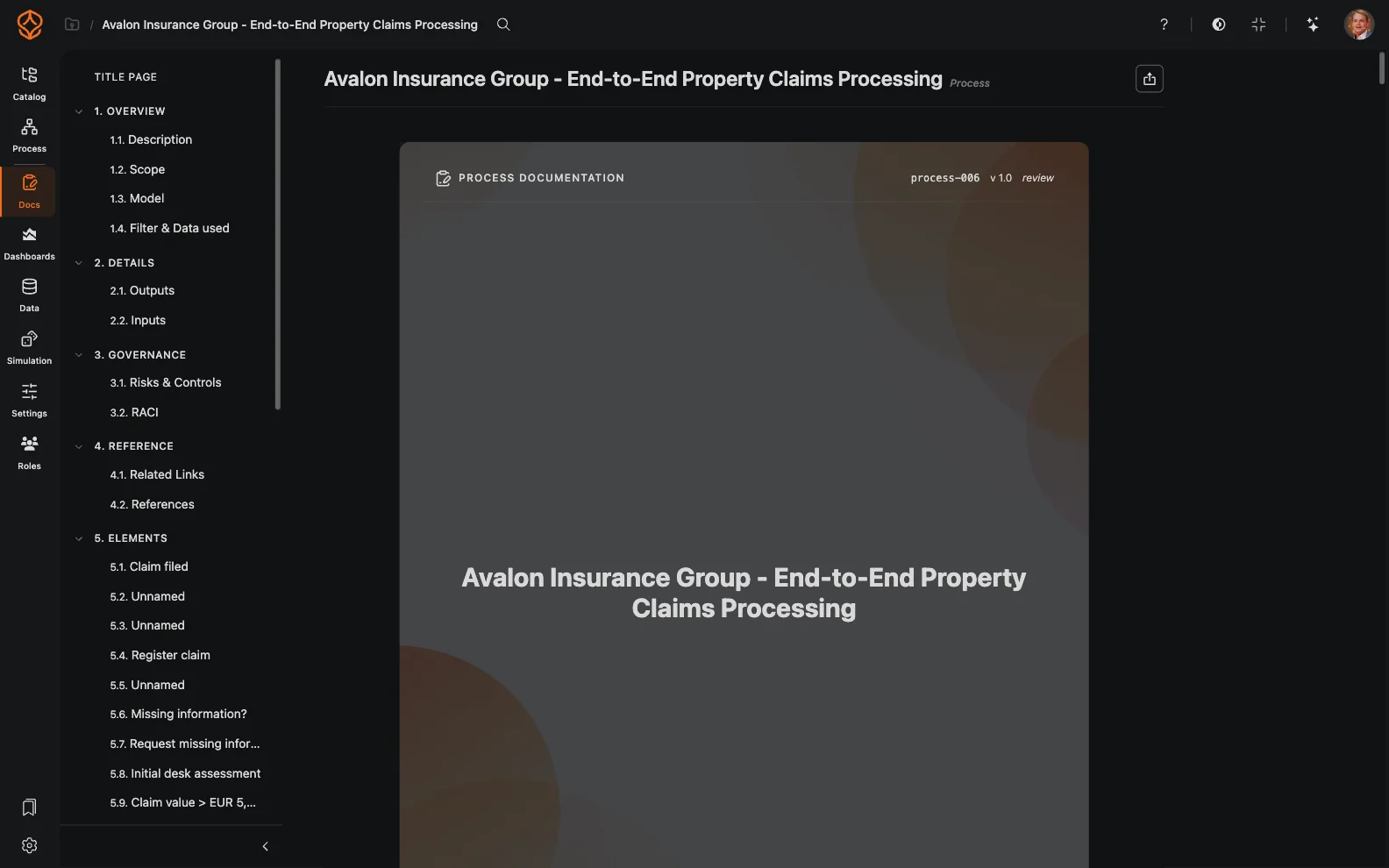
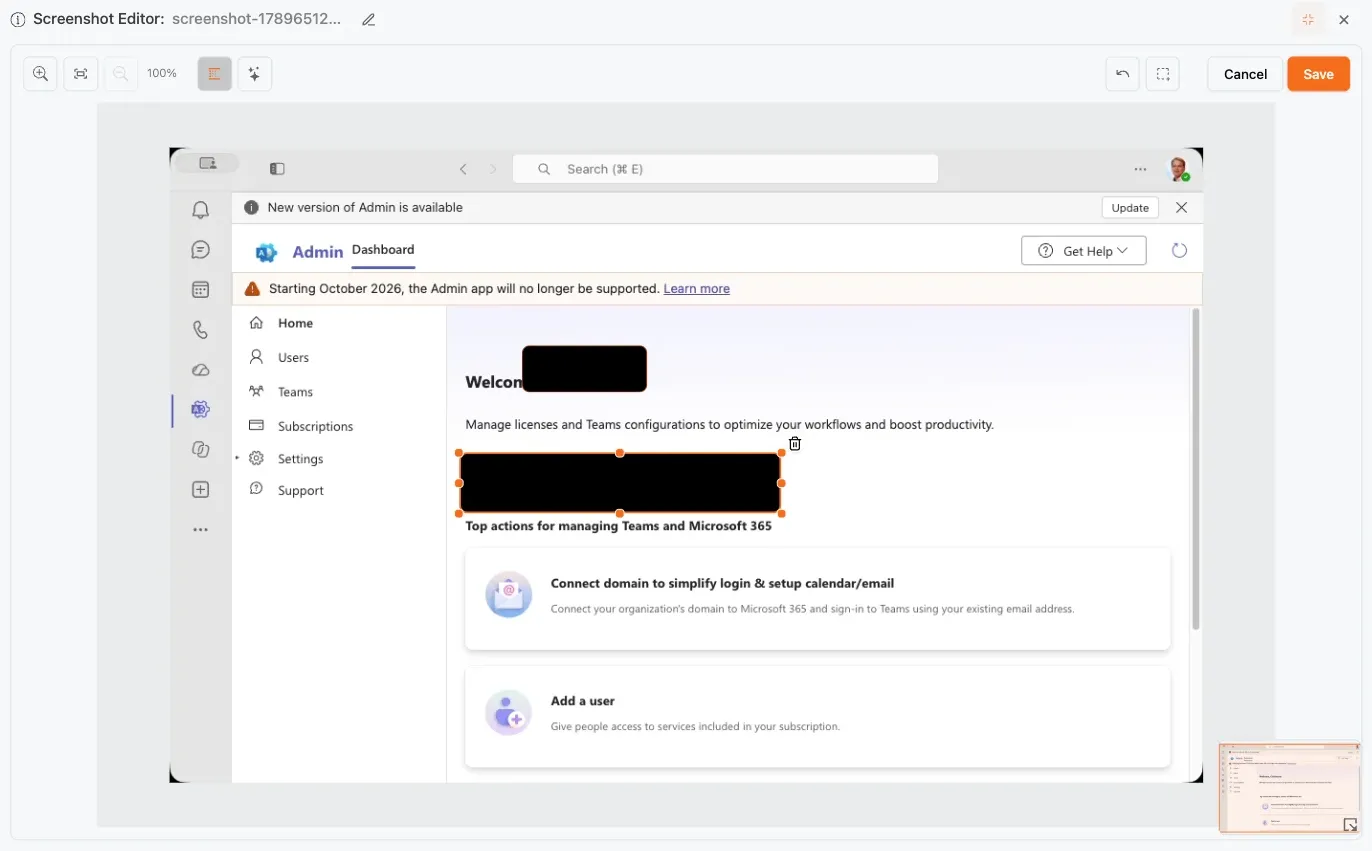
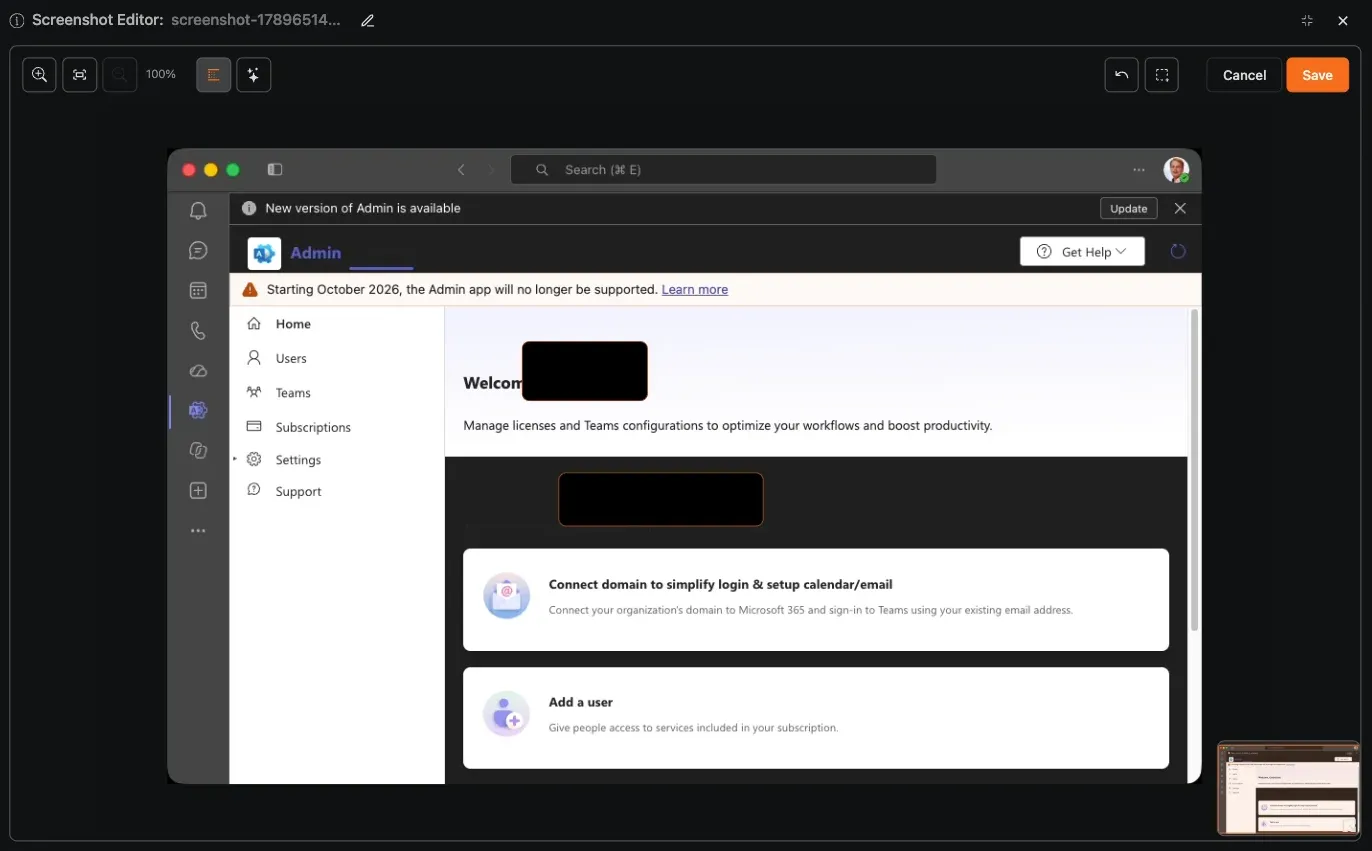
The document is one half. The check is the other, and it belongs in the same place: compare the documented steps with the activity recorded in your systems, then decide whether the training, the document or the process needs to change. An approved change goes back into the documentation with its own version status.
Two limits are worth stating. ProcessMind organizes the record and gives you evidence for review; it does not certify compliance, and it does not replace the sign-off your quality management system requires or the policy library your legal team maintains. Screen capture tools that sit outside this workflow, Scribe being one example, record how someone completes a task just as well, and a wiki may still be enough for a handful of procedures that one team maintains. What neither a wiki nor a separate document store can tell you is whether the procedure still matches the work.
Why do written procedures drift from the work?
Procedures drift because work changes after someone documents it. That is not necessarily a writing failure. It is a sign that the process has evolved.
The procedure is based on memory. A workshop captures how people understand the process, which may reflect how it was designed rather than how it is carried out. Exceptions are easy to miss, even though they can account for much of the work.
Teams develop workarounds. Someone finds a faster route for a common case and shares it with colleagues. If updating the SOP takes more effort than using the workaround, the document can fall behind.
Systems change. A field gets renamed, a check becomes automatic or an approval threshold changes. The procedure may still describe the previous setup.
The change is hard to spot. A written document does not show when the work began to differ. Without evidence from the process, you may need to ask people to reconstruct what happened.
What keeps a procedure current
A document in a folder cannot answer that on its own. Keeping the procedure living can: it stays attached to the process and to the activity it describes, so a change to a step and a change to its documentation are reviewed together, by the roles the model already names. The published version is the single source of truth your team reads in the Process Portal, and every export comes from that record rather than from a copy someone edited locally.
Two things then keep it honest. Conformance checking measures the difference between the documented process and the activity your systems recorded, so drift becomes something you can look at rather than suspect. Process governance keeps the ownership of that answer clear, and governance and publishing is where the review and the version live.
A written procedure only drifts after the work has already changed, and by then nobody can say when it started. Keeping the procedure on the process, next to the activity it describes, is the only way I have seen to catch that early. Read the document and the evidence together, or one of them will always be out of date.
How can you write an SOP from event data?
Event data shows which steps people take in the systems that already record the work, such as an ERP, an ITSM or a WMS. Use it alongside process knowledge to draft and review a procedure. This is one of the things process mining is for:
-
Load the event log
Identify the case ID, the activity and the timestamp in the systems that record the process, and keep to one case notion and one time range so the picture stays comparable. -
Map it onto the documented process
Put the recorded sequence next to the steps in the SOP. Some documented steps appear in every case, some appear rarely, and some do not appear at all. Each of those is worth a question. -
Analyze the variations
Measure how often each path runs, where work waits and which steps are repeated. A variation in the data is a prompt to investigate, not proof that the work is wrong. -
Add the variations that matter to the SOP
Turn the recurring ones into exception rows with a role, a system and an expected output, the way the three examples above do, and ask the people doing the work to confirm what the data cannot show.
You can use process data to check a procedure, but the data does not explain every decision or establish what the process should be. Confirm the findings with the people who do and own the work, and name an owner and a review trigger while you are there: a procedure nobody owns is the one that drifts.
Where to Go From Here
You have a procedure and a way to check it. Compare the documented steps with the activity your systems already record, and use the differences to decide what to review with your process team.